

Navigate
Products
Download
eShop
Upgrade
Overview
Training
Support


Navigate
Products
Download
eShop
Upgrade
About
Training
Support


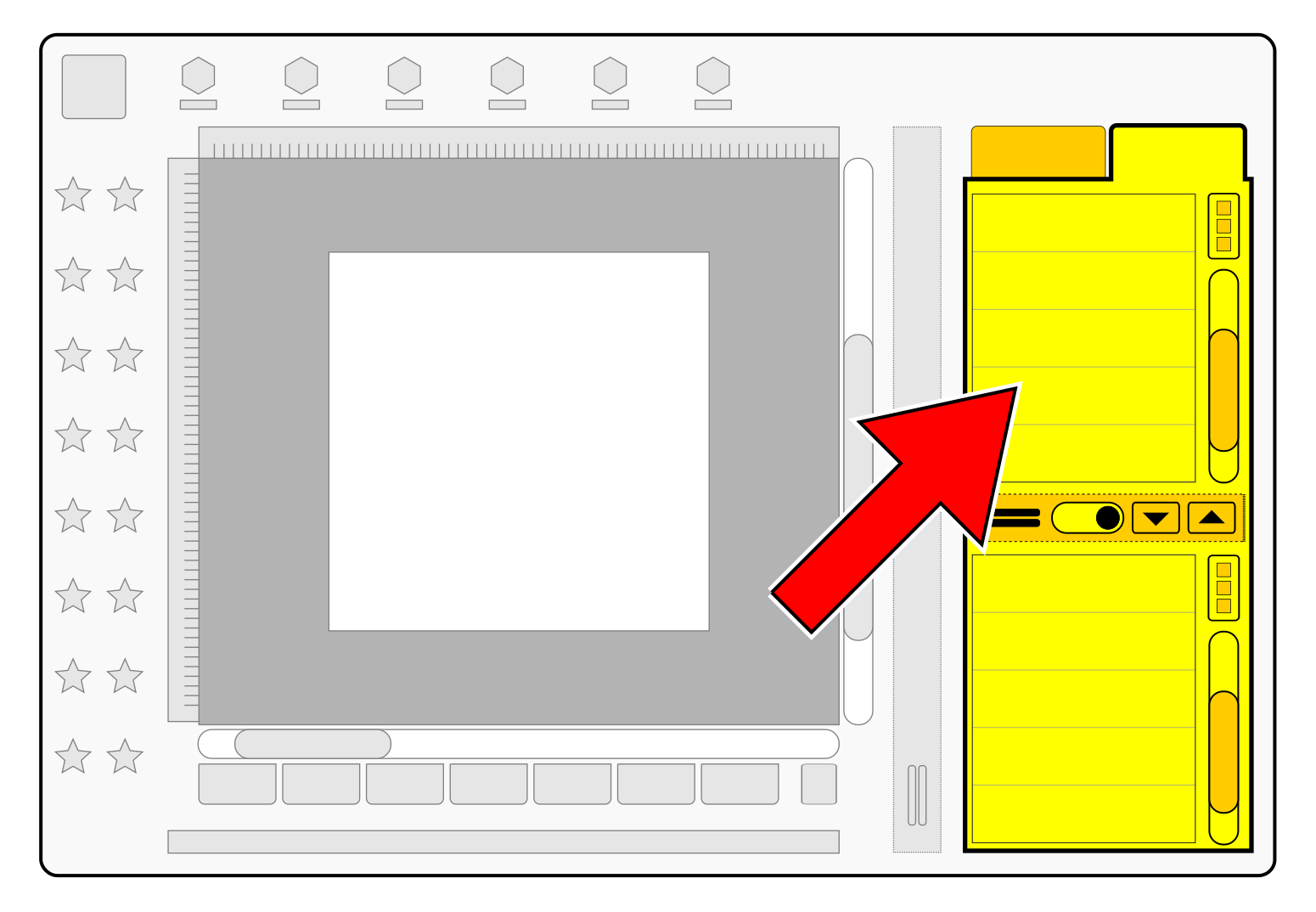
In Studio NEXT, the Main Control Panel serves as the primary interface for managing, organizing, and editing project components. Rather than functioning as a static toolbar, it operates as a dynamic "command center" that adapts its interface and tools based on the active task.
The Main Control Panel is located on the right side of the Studio window. This centralized hub allows digitizers to bypass complex nested menus by placing essential tools and data within a single, multi-tabbed panel.
A defining characteristic of the Main Control Panel is its responsiveness to the software's working mode. When a specific tool is selected - such as the node-editing tool or a transform command - the panel automatically updates to provide immediate access to the relevant settings for that function. This ensures that the most pertinent controls are always available.
The Main Control Panel is designed to streamline the workflow by reducing the need for navigational clicks. By consolidating object management, tool parameters, and visual aids into a single, adaptive interface, it allows the digitizer to focus on the creative and technical aspects of embroidery design.
The panel is organized into several distinct tabs, each dedicated to a specific aspect of the embroidery design process:
The Inspector Tab is the primary tool for managing the structure of a design. It is divided into two main sections:
The "Swatches" tab houses color management tools:
The "Accuracy" tab contains controls and visual aids that assist with the technical accuracy of digitizingg:



By snapping a guideline to a target first, you create a straight "magnetic" path. Because the Accuracy Tab allows you to snap objects and nodes to these guidelines, the guideline acts as a bridge for digitizing symmetrical designs, such as logos or mirrored floral patterns.
Guidelines can also be used for slicing objects. By snapping a guideline to the grid or to a node of an existing object before slicing, you ensure that the cut is made exactly where required.
The content of the Instrument Tab is highly fluid, changing according to the active mode, such as lettering, tracing, or freehand drawing.
The Parameters Tab becomes critical during the refinement phase of digitizing. While in node-editing mode, this tab provides direct access to the properties of the selected object. Instead of opening a separate Parameters window, users can quickly adjust densities, stitch styles, or underlay settings directly within the panel.
Note: Inactive tabs are hidden to simplify the user interface; they become visible only when the corresponding working mode activates them.