

Navigate
Products
Download
eShop
Upgrade
Overview
Training
Support


Navigate
Products
Download
eShop
Upgrade
About
Training
Support


Markers are specialized, movable points or handles used in Embird Studio to define the coordinates of specific operations or effects. Unlike standard nodes, markers are not part of an object's vector contour. Markers are created and manipulated exclusively while the program is in node-editing mode - the phase used for digitizing or editing vector objects at the node level.
Markers allow for precise control over non-contour aspects of an object, including:




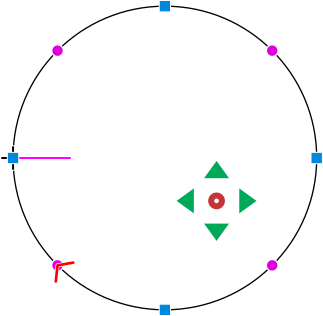
Mesh object with Origin Point
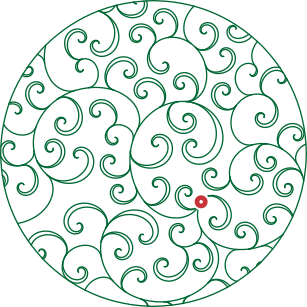
Plant fill growing from the Origin Point
Markers are generally placed using a standardized workflow, typically via an object's contextual menu while in node-editing mode.
A star-shaped marker serves as the focal point for specific effects within Fill and Mesh objects.
The Tie-In and Tie-Off Markers specify the exact locations for advanced multi-directional anchoring stitches.

Example of a Tie-In Marker. Left: Column object with a manually positioned tie-in marker. Right: Resulting stitches with the tie-in highlighted for clarity.
After a marker has been initialized, it can be repositioned to suit the design requirements.
To ensure a marker functions as intended, you must also activate its corresponding parameters (such as the specific effect or tie-up pattern) within the Parameters window.
Markers vs. Contour Nodes: It is essential to distinguish between markers (focus stars or tie-in symbols) and standard contour nodes (the points defining an object's vector geometry).
Nodes define the shape's geometric contours.
Markers define the location of internal effects or specialized embroidery functions.