Thread List and Swatches Tab
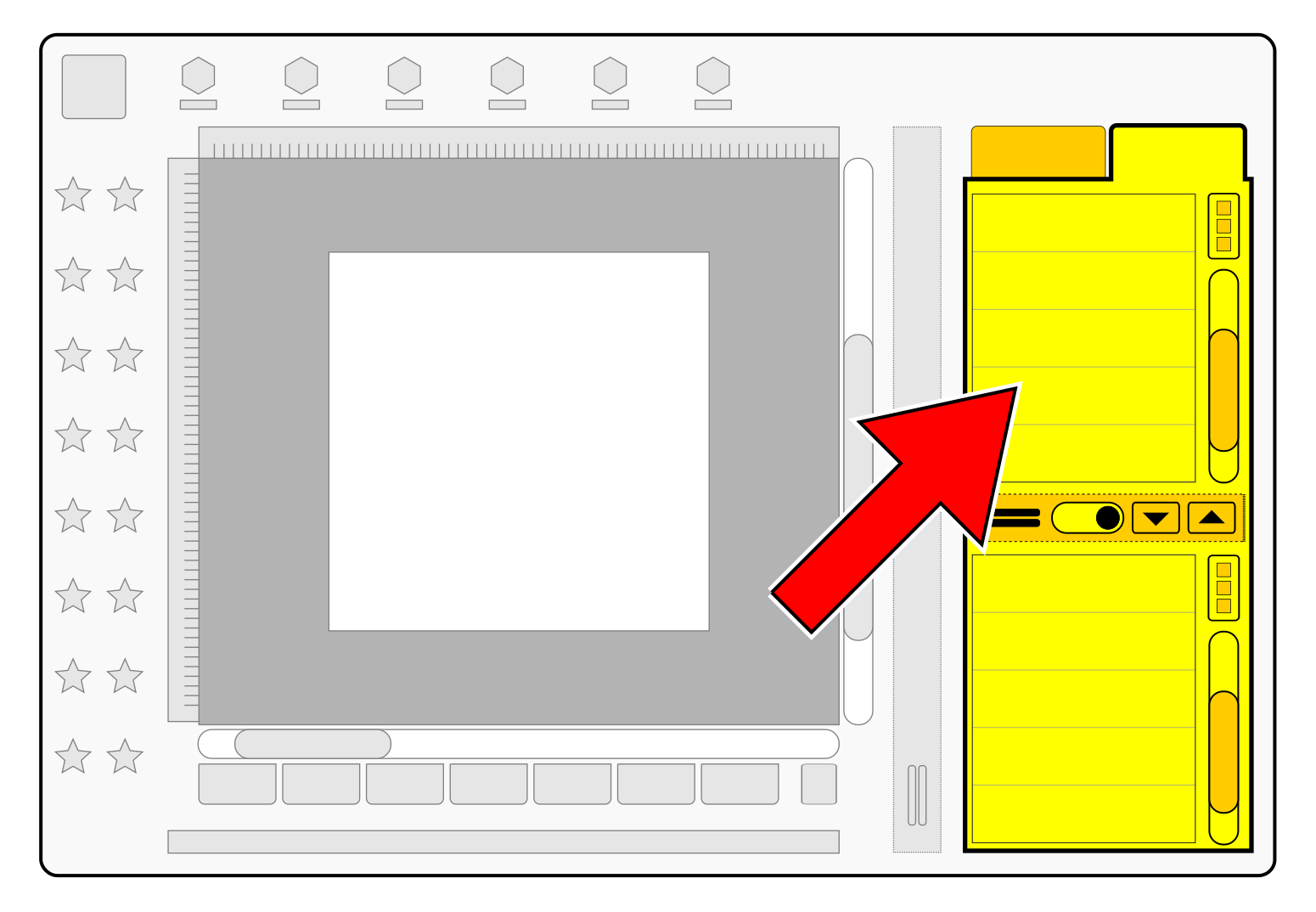
Within Embird Studio, the Thread List is housed within the Swatches Tab on the Main Control Panel.
This panel features several tabs that automatically adapt their configuration based on the current editing mode or object selection.
When a design is opened or created, the Thread List maps the generic color data of the file to a specific manufacturer's range, known as the Default Thread Catalog.
This ensures that the digital on-screen representation accurately aligns with physical thread specifications for production.
The Thread List, working in tandem with the Palette located on the same tab, serves as the primary interface for comprehensive color management.
Layout of The Swatches Tab
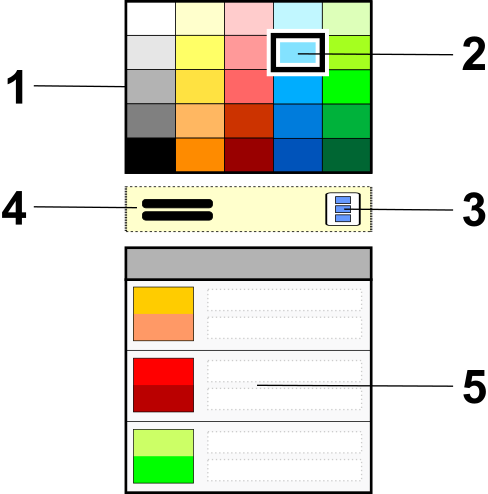
The Swatches Tab is the specific UI area that holds both the Thread List (the colors currently used in your design) and the Palette (the collection of available colors you can choose from).
Swatches refers to a visual library of specific, reusable color definitions. Think of it as a digital sample book or a thread box.
Instead of choosing a random color from a spectrum every time, you use "Swatches" to ensure consistency across your design.
1
Palette: Manage the color collection for fast access to predefined colors.
2
Active Color: The highlighted color used when creating new objects, or the color to be dragged to an existing object or thread list item.
3
Palette Menu: Access palette-specific commands.
4
Splitter: Manage the proportion of the palette versus the thread list.
5
Thread List: A chronological list of all colors used in the design.
Most features within the Swatches tab are accessible via context-sensitive menus. If using a mouse, click the secondary button to open the pop-up menu. On touchscreen devices, access these menus by tapping the pop-up menu button.
The Thread List
The Thread List provides a streamlined, chronological color sequence generated automatically from the design at any stage of the digitization process.
The Thread List Layout
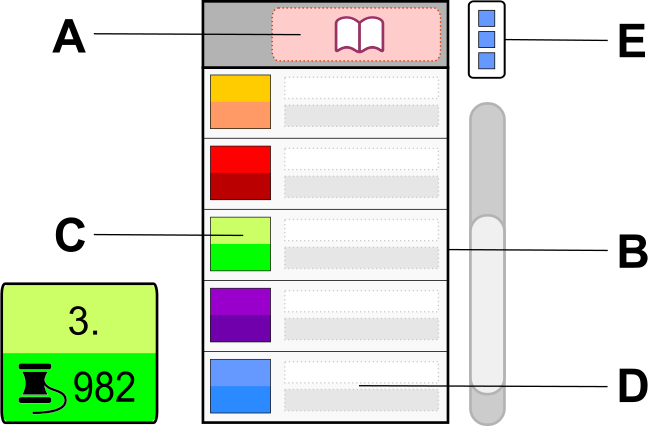
A
Default Thread Catalog: Design colors are matched to this catalog, which is selected from the available libraries. Click this table header to set a different catalog as the default.
Another way of how to set this catalog is to use
main menu > Options > Default Thread Catalog command.
Note: Colors are matched to this catalog even if they were originally selected from a different thread library.
B
List of Design Colors: Use drag-and-drop to copy colors from the palette or another list item. Clicking the secondary mouse button on any item opens a context menu, which is also accessible via the Control (E) shortcut.
C
Color Box - Screen Color and Thread Color: The upper half represents the "screen color" assigned to objects. The bottom half shows the nearest matching color from the selected Default Thread Catalog. Note that colors may vary, as thread catalogs contain a finite selection compared to millions of digital screen colors. The top number indicates the chronological order of the color in the design, while the bottom code identifies the thread within the catalog.
D
Textual Description: The upper portion describes the object or layer associated with the color (e.g., "Sfumato object, shade #3"). The bottom portion displays the official name of the matching thread from the default catalog.
E
Pop-Up Menu Button: Provides access to context-specific operations, such as defining new colors, picking colors directly from a background image, or synchronizing thread colors with screen colors.
Primary Functions of the Thread List
The Thread List fulfills four critical technical roles:
- Simplified Overview: It provides a condensed list of thread changes in their exact stitching order, regardless of the number of individual vector objects assigned to each color.
- Internal Color Access: Complex objects like Sfumato or Appliqué contain "inner" colors usually managed via the Parameters window. The Thread List allows for a faster high-level overview and direct editing of these internal layers.
- Catalog Matching: It facilitates the precise conversion of digital values to real-world thread codes from the chosen Default Catalog.
- Global Selection and Editing: It allows for the universal modification of a specific color.
Changing a color entry here updates every instance of that color across the entire design, even if the color is embedded within complex objects or distributed across multiple consecutive objects.
The Palette vs. The Thread List
While the Thread List shows the sequence of colors as they appear in the design, the Palette represents the available color pool for the project.
Users can drag and drop colors from the Palette directly onto objects in the Work Area or onto entries in the Thread List to quickly reassign color values without opening deep menu settings.
Comparison with Object Inspector
While the Object Inspector is the primary navigation tool for managing the structural hierarchy of a design - detailing object types, groups, and layers - it is not optimized for color overview.
In designs containing hundreds of objects, identifying the color sequence in the Inspector can be cumbersome.
In Studio, the relationship between objects and colors is categorized as follows:
- Shared Colors: Multiple distinct vector objects often utilize the same thread color to minimize stops during embroidery.
- Multi-color Objects: Specialized object types, such as Sfumato, Appliqué, or Border objects, frequently contain internal color subsets within a single structural entity.