

Navigate
Products
Download
eShop
Upgrade
Overview
Training
Support


Navigate
Products
Download
eShop
Upgrade
About
Training
Support


Once the background artwork is prepared, the actual digitizing process can begin.
We will use Fill objects to digitize the solid colored areas, such as letters and graphical elements. Subsequently, we will layer thin black Outline Objects on top of these areas.
Fill objects are composed of long parallel stitches (when using the standard "plain fill" setting). These stitches are automatically divided into shorter segments to maintain proper thread tension and prevent loose loops. These divisions also provide the plain fill with a subtle visual texture. Due to these split stitches and their consistent stitching angle, fill objects are ideal for digitizing larger design elements.
Note: When using fill objects for lettering, the characters should be at least 1 cm (1/2 inch) high to ensure high-quality stitch results. They are not suitable for very small lettering or narrow satin-style objects.
A high-quality embroidery design should minimize jump stitches to accelerate the sewing process and ensure a cleaner finish. If a design contains no trims or color changes, it can be sewn continuously. While some trims are unavoidable, a digitizer should aim to reduce their frequency throughout the design.
To minimize trims, it is essential to strategically place the start and end points of each digitized area. If objects are positioned close to one another, their start and end points should be aligned so they can be linked using Connection objects. This creates a "nearest point connection", keeping the linking thread as short as possible.
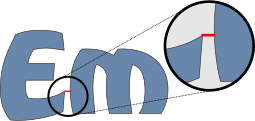
Fig. 1. Nearest point connection between two fill objects.
Note: Closest point connections are not always mandatory. If a gap between connected objects will be covered by a subsequent object of a different color, the connection path should be hidden underneath that object, even if it is not the shortest physical path.
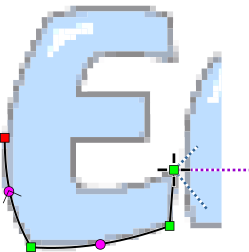
Select red from the palette (located in the top right corner of the screen) to set the active color for the new objects.
Select the Fill tool and place the first node on the letter 'E' at the point nearest to the letter 'm'. Studio is now in 'Creation/Editing' mode. For the first letter of a word, the start and end points are typically placed at the same location. Digitize the entire letter by placing nodes along its perimeter.
Fig. 2. Digitizing the letter E.
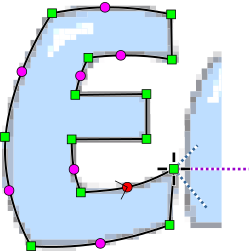
Select red from the palette (located in the top right corner of the screen) to set the active color for the new objects.
To close the shape, place the final node slightly to the side and then drag it directly onto the first node. This prevents you from accidentally selecting the first node instead of creating a new closing point.
Once the object contour is complete, click the secondary mouse button to open the context menu. To finalize the letter, select the Generate Stitches command. Review the other options in this menu, which allow you to convert curves to straight lines, insert or delete nodes, and adjust the start and end point positions of the fill. The software populates the object with thread starting at the designated start point and finishing at the end point. Proper placement of these two points is vital for connecting objects and eliminating trims.
Fig. 3. Completed contour for letter E. The three lines extending from the first node indicate the angles for zig-zag underlay 1, zig-zag underlay 2, and the final cover stitches.
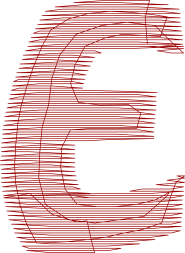
The finished letter is filled with stitches at a consistent angle (0 degrees in this instance). Studio also automatically generates underlay stitches. The edge underlay follows the contour to prevent the cover stitches from pulling the fabric, while the zig-zag underlay stabilizes the material to minimize the "push" effect during sewing.
The tiny dots visible on the horizontal stitches represent needle points - the locations where long stitches are divided. These points follow a specific fill pattern. Users can choose from various predefined fill patterns in the parameters window or design their own.
Fig. 4. Finished letter E with underlay and cover stitches.
All completed objects are listed in the Object Inspector.
Fig. 5. Object icon as displayed in the Object Inspector.
Note that the character 'E' was created using the plain fill tool. If your design requires satin stitch lettering, please refer to the Manual Digitizing of Lettering tutorial.
Digitize the remaining letters using the same technique. For the letter 'm', place the start point on the left side and the fill end point on the right side. To achieve this, trace the nodes around the letter starting and ending on the left, then select the rightmost node, right-click, and choose the Place Last Stitch Here command. This setup allows for seamless connecting stitches between letters later in the process.
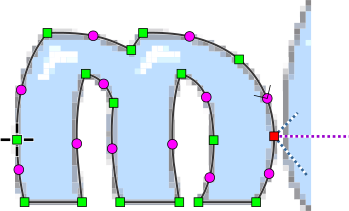
Fig. 6. Digitized letter m. The sewing sequence ends on the right side to accommodate the next connection.
Letters like 'b' and 'd' require a different approach because they contain internal openings. First, create the outer contour with the fill tool, then define the hole using the Opening tool. Note that openings do not appear in the primary Object Inspector; instead, they are listed in the Parts Inspector, which manages the sub-components of complex objects.
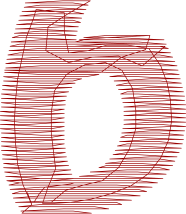
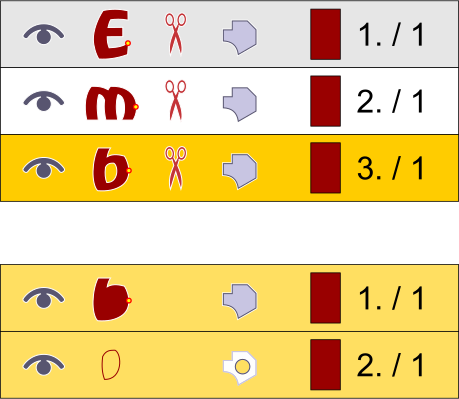
Fig. 7. Finished letter b.
Fig. 8. The Opening as displayed in the Parts Inspector.
Digitize the blue section of one nut using the fill tool. We will generate the remaining objects through duplication and rotation. Select the object and navigate to Main Menu > Transform > Transform Objects.
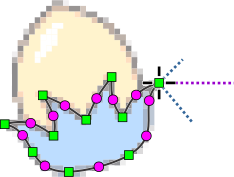
Fig. 9. The first object digitized manually.
Set the rotation angle to 120 degrees and the Count to 3. Position the rotation center (indicated by a small circular icon) in the work area as needed. A semi-transparent preview of the new copies will appear. To finalize, click the Generate Stitches (bucket icon) button on the top bar.

Fig. 10. All designated blue areas are now filled with preliminary red thread.
All blue parts of the image have been digitized and filled with red thread for visibility against the background. We will now change these to the correct blue color. Select the objects using any of the following methods:
Click and hold the primary mouse button on a blue color cell in the palette, drag the cursor to the selected items in the Work Area, and release the button to apply the color.

Fig. 11. Objects updated to the correct blue color.
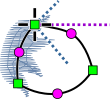
Next, digitize the yellow interior parts of the nuts.
Fig. 12. Yellow area digitized with a protective overlap.
Ideally, these should be digitized before the blue areas so they sit naturally beneath them in the final embroidery. However, we can digitize them now and adjust the sewing order. Select a temporary color (e.g., brown) and use the Fill tool for the first nut's yellow area. Ensure there is a slight overlap between the yellow and blue areas. This prevents the fabric from showing through if thread tension causes the objects to pull apart during sewing.
Use the Main Menu > Transform > Transform Objects to create two rotated duplicates (120 degrees). Then, Generate Stitches for these new objects.
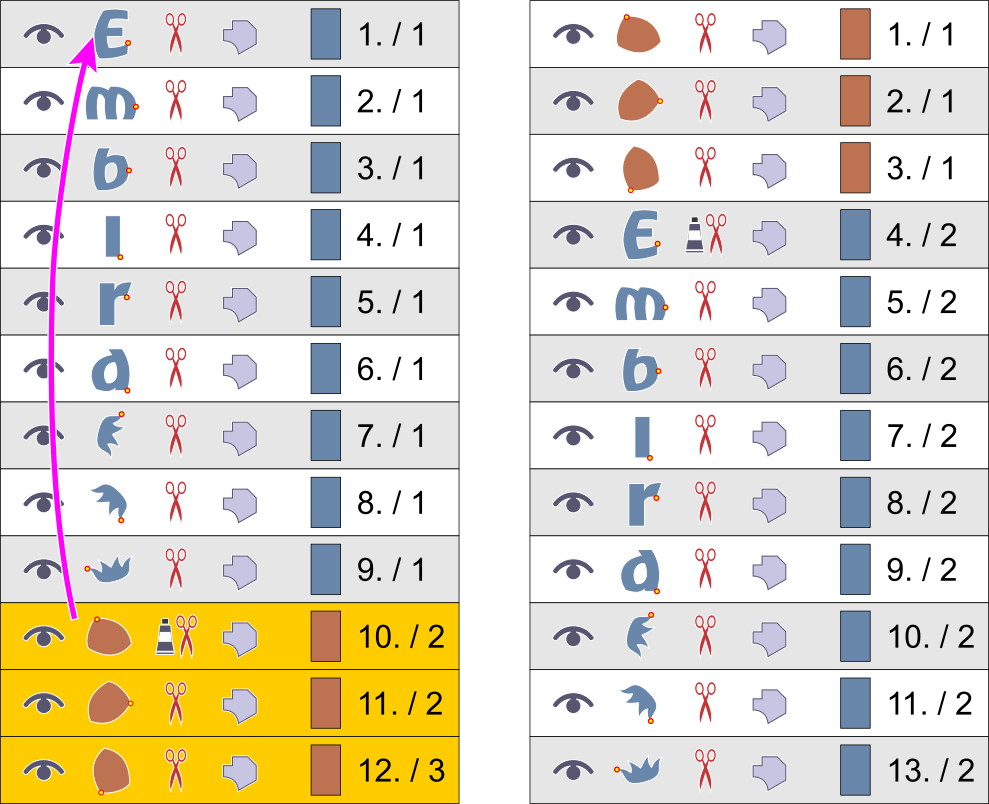
The brown objects currently sit on top of the blue ones. To correct this, select the three brown objects in the Object Inspector. Use the primary mouse button to drag the selection over the first object in the list (letter E). Release the button and select the Insert Before command from the pop-up menu that appears. The brown objects will move to the top of the list, ensuring they are sewn first.
Fig. 13. Adjusting sewing order via drag-and-drop.
We need to change the stitch angle for the brown objects. If adjacent fill objects share the same stitch angle, the stitches may interleave, resulting in a jagged edge.
Select the three brown objects, right-click the selection, and choose the Parameters command. In the Parameters window, change the fill angle to 90 degrees and click .
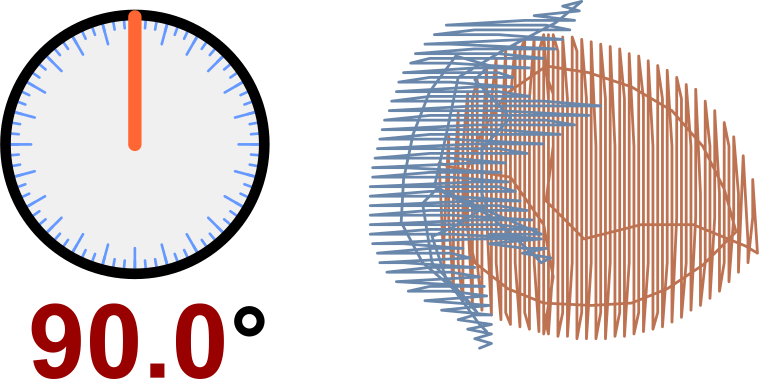
Fig. 14. Modifying the fill stitch angle for better separation.
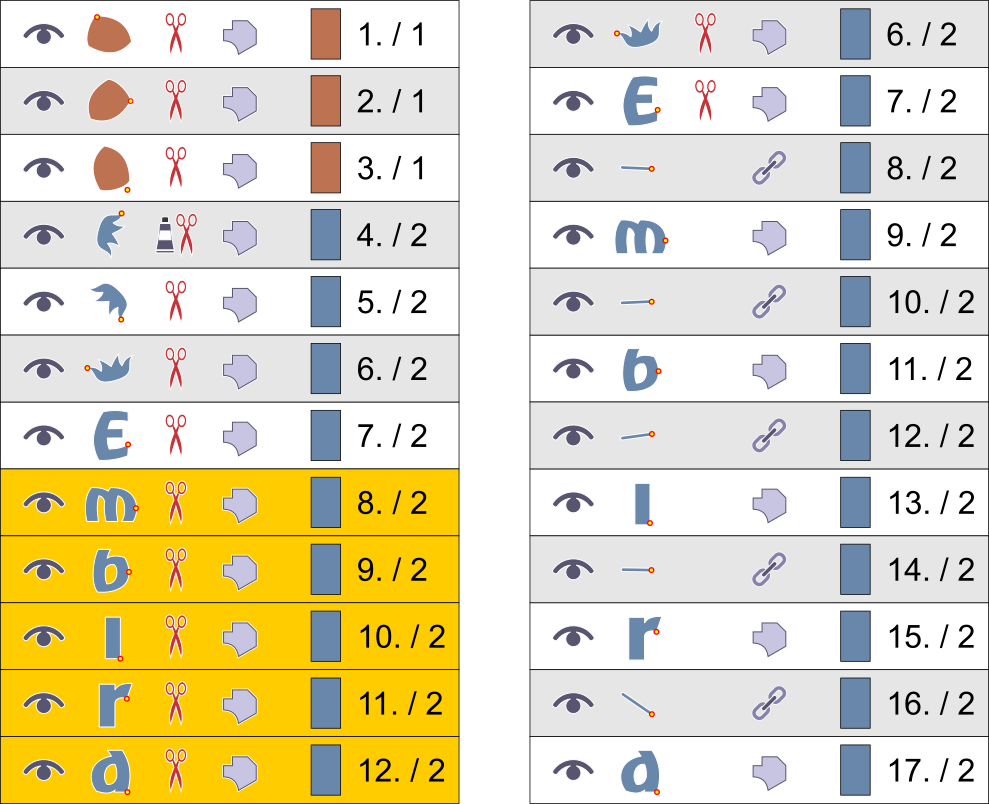
A small red scissors icon in the Object Inspector indicates that an object is not connected to the previous one, prompting the embroidery machine to perform a trim. To avoid these trims between letters that are close together, we can link them using running stitch connections.
Select letters 'm', 'b', 'i', 'r', and 'd' in the Object Inspector (do not select 'E', as it starts the word). Right-click the selection and choose Create Connection to Previous Object. This creates a link from each selected object to the one preceding it.
Fig. 15. Generating automatic connections to eliminate trims.
The software generates connection stitches between the objects. In the image below, these are marked by small red arrows. If you see long stitches crossing through the center of objects, it indicates that the start and end points of your fills were not positioned correctly. While Studio creates straight connections by default, you can manually edit their shape by adding new nodes.
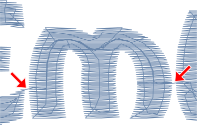
Fig. 16. Optimized nearest point connections between letters.