

Navigate
Products
Download
eShop
Upgrade
Overview
Training
Support


Navigate
Products
Download
eShop
Upgrade
About
Training
Support


For a complete list of outline creation methods, please refer to the Outlines - Overview chapter.
In this section, we will add thin running stitch outlines to the logo. We will create a two-layer outline by drawing the first layer and then using Studio's automated features to generate the second layer (backward path). While Studio offers various creative outline styles, the simple, thin running stitch is generally the most effective choice for corporate logos. Other styles - such as pattern, border, or sketch outlines - typically require larger dimensions to stitch correctly.
Satin stitch outlines are also frequently utilized in digitizing, though they are not required for this specific logo design.

Select black from the palette. Use the Outline tool to create the first segment of the nut's outline.
We will digitize the outline in sections to utilize the Main Menu > Build > Outlines > Arrange Outline Parts function, which reorders segments and automatically adds backward paths. For this function to work correctly, each segment should have start or end points placed near the corresponding points of adjacent segments, allowing the software to determine the logical connection points.
Notice that a new outline object is marked with a red footsteps icon in the Object Inspector. This icon indicates that the object currently lacks a backward path (the second layer of stitches).
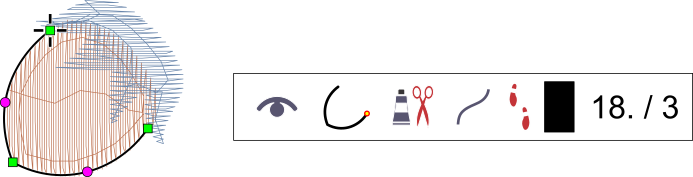
Fig. 1. Initial segment of the nut outline.
While creating outline segments, enable the Main Menu (node editing mode) > Nodes > Snap to Nodes option. This allows new nodes to snap to existing nodes of the underlying blue and brown objects, ensuring the outline follows the fill objects precisely.
Digitize the second segment of the outline as a separate object, placing its start point on or near the end point of the previous segment.
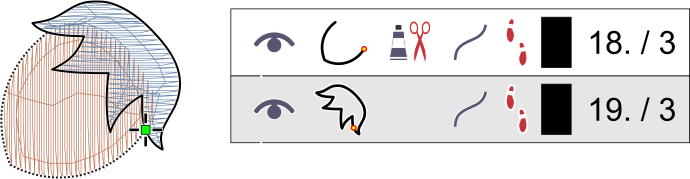
Fig. 2. Digitizing the second segment with Snap to Nodes active to simplify placement.
With both segments created, select them and apply the Main Menu > Build > Outlines > Arrange Outline Parts command. Studio will merge the segments into a single object and generate two identical backward paths with reversed node orders (visible in the Parts Inspector). The software reorders these parts to ensure continuous sewing, starting and ending at the same point to create a seamless two-layer path.
These arranged parts are consolidated into a single entry in the Object Inspector.
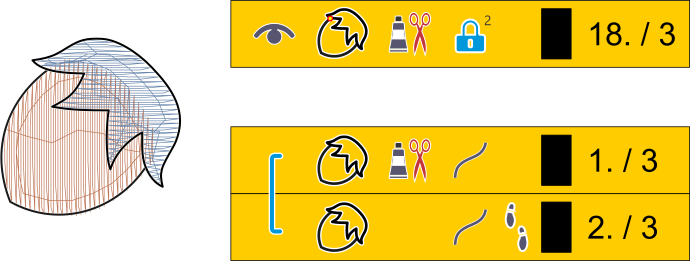 Fig. 3. Completed nut outline composed of original segments and automatically generated backward paths.
Select the finalized nut outline, then duplicate and rotate it for the remaining nuts using the Main Menu > Transform > Object Transformations command. Move the new outlines into their correct positions.
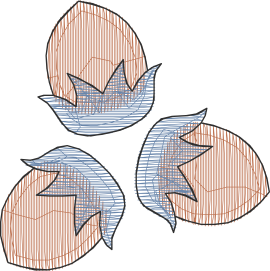
Fig. 4. Outlines applied to all three nuts.
Next, we will create outlines for the lettering. Since the letters are positioned closely together, the most efficient method is to trace a single outline around the entire word and then generate a backward path.
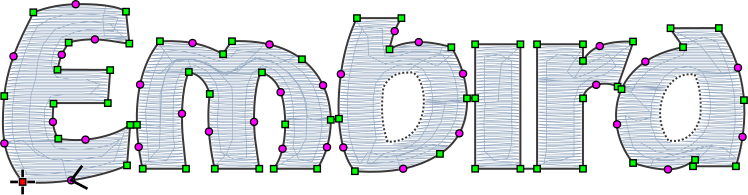
Fig. 5. Tracing the outline around the lettering.
Select the outline and use the Main Menu > Build > Outlines > Create Backward Path command. This creates an identical object with a reversed node order. The new object will be identified in the Object Inspector by a black footsteps icon, confirming it is a backward path.
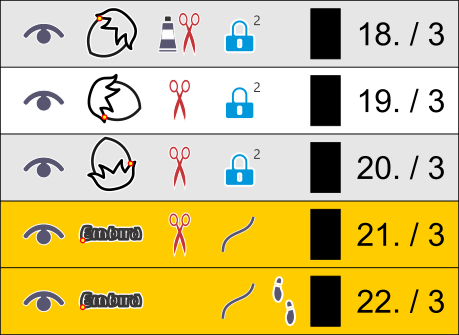
Fig. 6. Lettering outline with the second layer (backward path) applied.
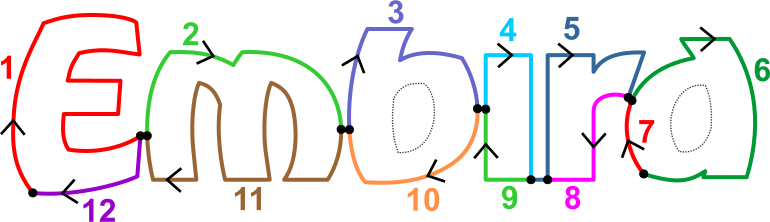
Fig. 7. Method for drawing separate segments to optimize the Arrange Outline Parts function.
Alternatively, these outlines can be generated automatically using the Auto Outliner tool.
The design is nearly complete. To finish, we must add outlines for the openings in letters 'b' and 'd'. Trace the opening in the letter 'b' and generate its backward path; repeat this for letter 'd'. Trims will occur between the main lettering outline and the opening outlines, as there is no way to connect these areas invisibly.

Fig. 8. Completed logo design featuring fills and outlines.
The design currently contains 3 colors and 13 trims. Creating connections between nut components of the same color could potentially reduce the trim count by 6.