

Navigate
Products
Download
eShop
Upgrade
Overview
Training
Support


Navigate
Products
Download
eShop
Upgrade
About
Training
Support


Basic shapes are geometric and ornamental patterns frequently utilized as fundamental building blocks in embroidery design.
Geometric shapes include ellipses, triangles, regular polygons, and other standard figures.

Ornamental shapes include flowers, stars, hearts, and spirals.
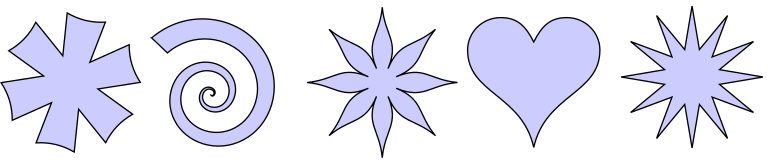
Basic shapes can be utilized in two distinct working modes within Studio:
This chapter focuses on option #1 - the creation of ready-to-use shapes in Selection/Transform mode.
Unlike stock patterns loaded from a library, shapes created with this tool are not pre-digitized. Studio generates these shapes dynamically, allowing for the fine-tuning of their geometry through adjustable parameters during the creation process.
The available set of parameters varies depending on the specific shape and the type of embroidery object it will become. These parameters include, but are not limited to: angle, thickness (for columns), sharpness, and the number of sides or points.
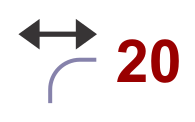
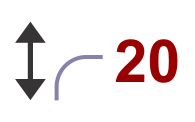
Example parameters: horizontal and vertical curvature settings for a rounded rectangle shape.
Note: Because these shapes are intended for use as embroidery designs, parameters must be selected with care to ensure high-quality stitching. An inappropriate combination of settings can result in stray stitches or a design that is unsuitable for production.
Shapes drawn in this mode are automatically converted to embroidery objects, such as a plain fill, mesh, outline, or column. For this reason, they are considered ready-to-use.

Basic shapes are created in this mode using the Shapes tool, located in the main toolbar on the main screen of Studio Next.
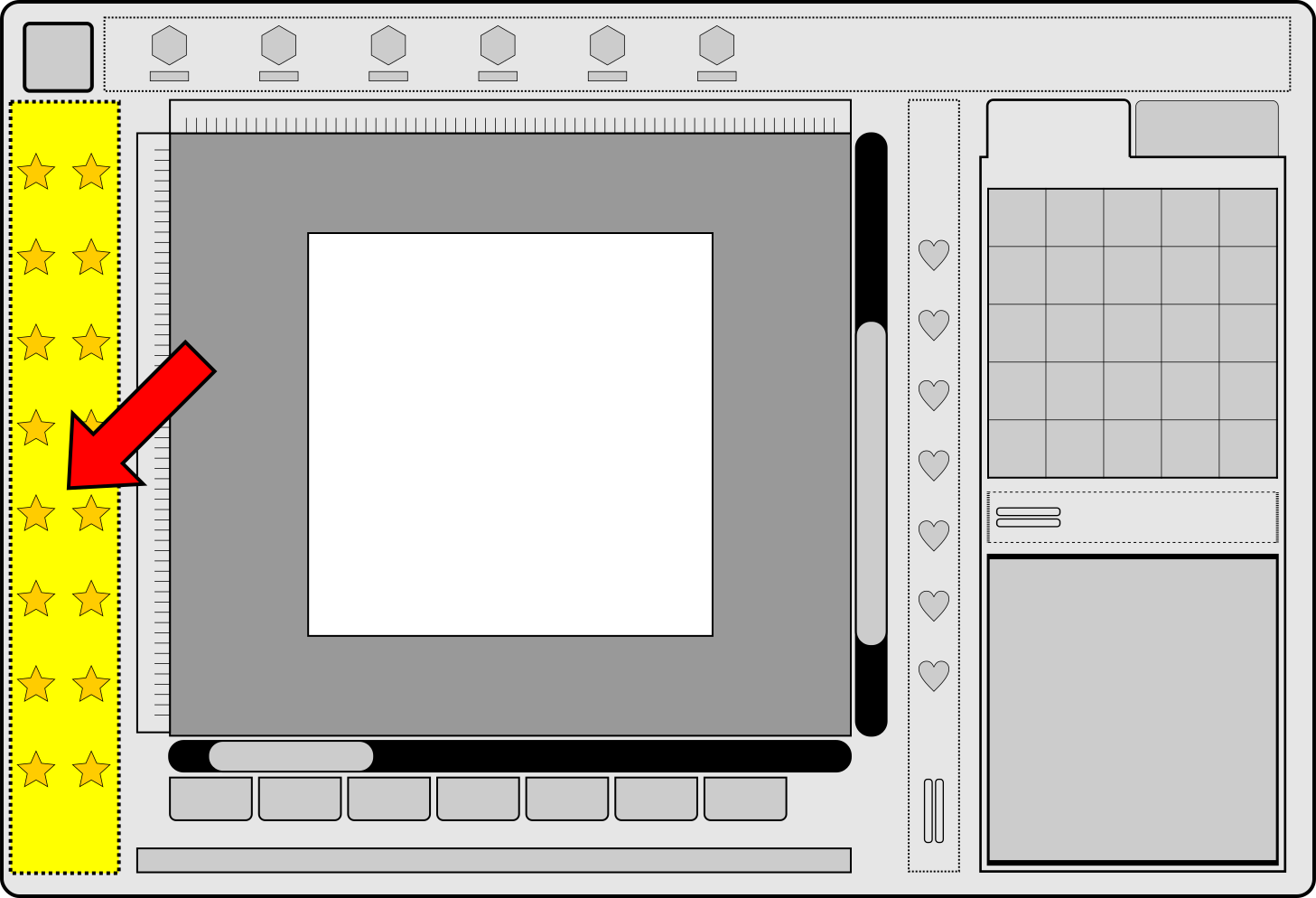
Main Toolbar.
The Shapes tool features an expander button, allowing you to select specific options from a pop-up panel.


The options indicate the type of embroidery object to which the selected shape will be converted.
Long-tap the Shapes tool button to open the options panel, then select the desired object type. This action switches the program into shape drawing mode. Alternatively, a standard click on the Shapes tool button will start drawing using the currently active option.

Example: a shape tool option configured to create a column object.
The left, right, and top panels of Studio will update to display the controls for shape mode. Select the desired shape from the menu in the top panel, then draw the shape directly in the work area.
A shape features two handles (small circular nodes) that define its size and proportions, along with a center handle that allows for movement.
The left panel includes switches to enable or disable the snapping of handles to the grid, guidelines, and other elements. Use these settings to position or align shapes with high precision.
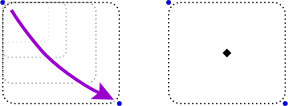
Example: A rounded rectangle shape being defined using handles.
While in Shapes mode, adjust the shape parameters in the main control panel as needed. For a rounded rectangle, this typically involves corner curvature. If the resulting object is a column, the thickness parameter should also be adjusted.
Upon exiting shape mode, the shape is converted into the selected vector object - in this example, a column object.
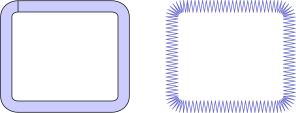
Example: A column object created from a rounded rectangle shape and filled with stitches.
Note: The conversion of shapes to columns utilizes the Corner parameter, which determines how sharp corners are truncated or smoothed.

Note: In addition to using basic shapes as direct embroidery objects, they can also serve as temporary templates. These templates help position other embroidery objects accurately before being deleted. This technique is useful for creating symmetrical designs, such as mandalas. Any object type, such as an outline, can serve as a template.
Note: Basic shapes can also be used to create a custom baseline for lettering.