Dashboard
The Dashboard in Embird NEXT is the central control panel and main screen from which users manage the software and initiate tasks.
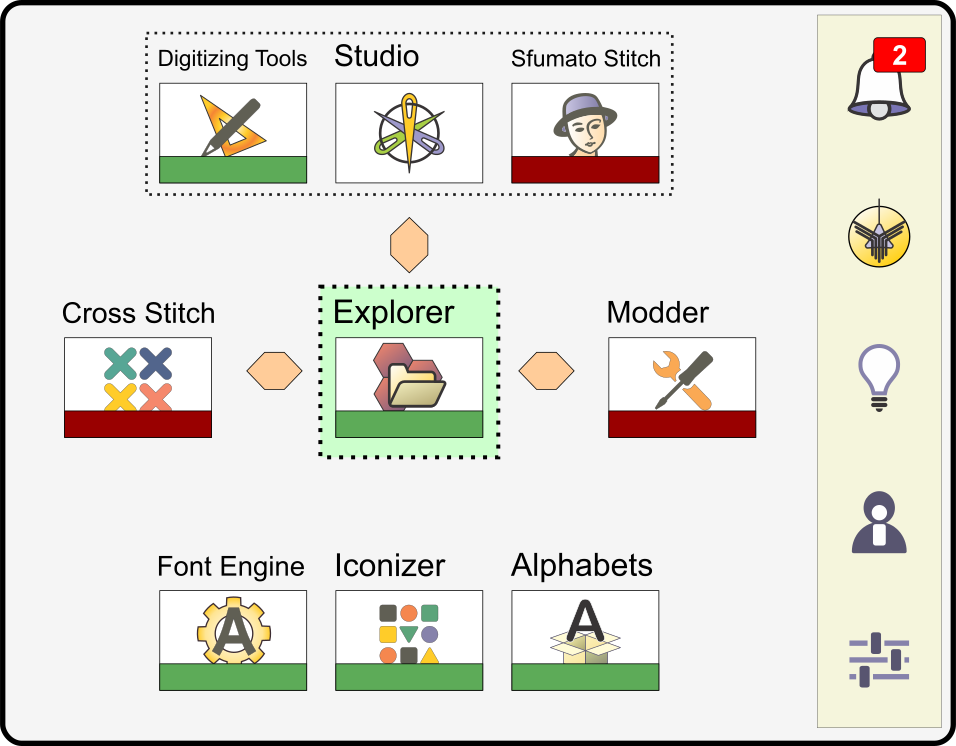
Dashboard of Embird Next
Dashboard serves as the unified interface for:
- Module Access: Launching all individual modules (e.g., Studio, Modder, Explorer) by clicking on their respective icons or thumbnails.
- Program Settings: Accessing and modifying global program settings for the entire application.
- Account Management: Managing user account data and registration information.
- Notifications: Dashboard receives notifications
from Embird server about updates, major upgrades, etc.
Essentially, the Dashboard acts as the primary navigational hub, bringing together the software's functional components and administrative tools.
Module Presentation and Access
Modules within Embird NEXT are visually represented by large thumbnails on the Dashboard. These thumbnails include a colored ribbon at the bottom to clearly indicate the current status of each module.
Status Indicators:
- Demo: The module is available for use during the 30-day demo period.
- Locked: The module is available but its functionality is currently restricted. This status applies after the demo period or a subscription has expired. Module requires activation/renewal.
- Activated: The module is fully functional under a purchased subscription.
Dashboard Element Descriptions
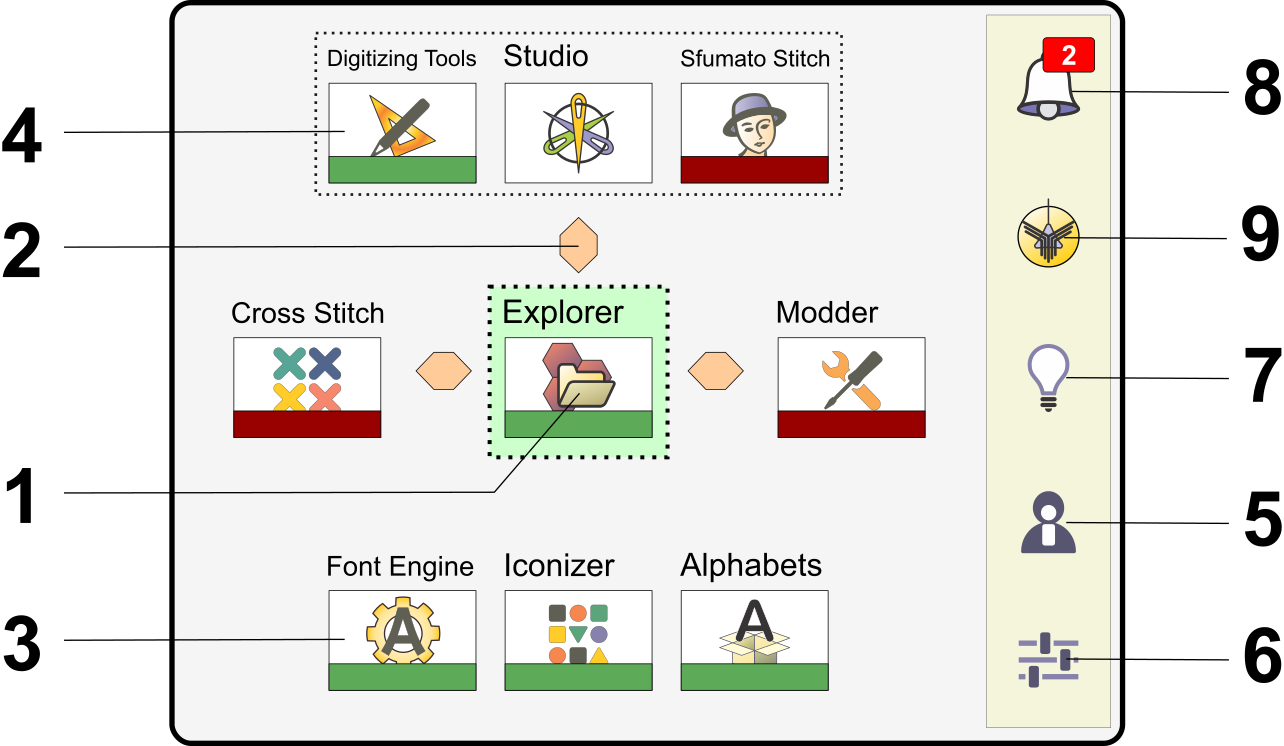
1
Explorer Module
The core file management module of the Embird NEXT suite, used for browsing, converting, and organizing embroidery files.
2
Direction Indicator
Visually indicates the file flow direction between the various modules, illustrating how data moves through the suite.
3
Support Modules
Modules located in the bottom row (e.g., Font Engine, Alphabets). They expand the capabilities of other modules but cannot be launched directly by the user.
Clicking on a Support Module thumbnail opens its dedicated settings panel or help chapter, if available.
4
Studio Workspace
The Digitizing Tools and Sfumato Stitch modules share this common work environment, accessible via their respective thumbnails.
5
User Account
A button used to access and manage user account data and activation details.
6
Settings
A button used to invoke a window containing various global program settings for the entire Embird NEXT application.
7
Help Button
Displays the overall Embird NEXT user guide. Detailed, module-specific help files are available within the respective modules themselves.
8
Message Center
A button used to access a list of notifications or system messages.
9
About Embird
A button providing access to legal information, including the current Embird version, the End User License Agreement (EULA), and third-party copyrights.
Accessing the Studio Workspace
The Digitizing Tools and Sfumato Stitch modules utilize a single, shared application environment known as Studio.
To open this common workspace, users can click on the thumbnail for any of the following three entries on the Dashboard:
- Studio
- Digitizing Tools
- Sfumato Stitch