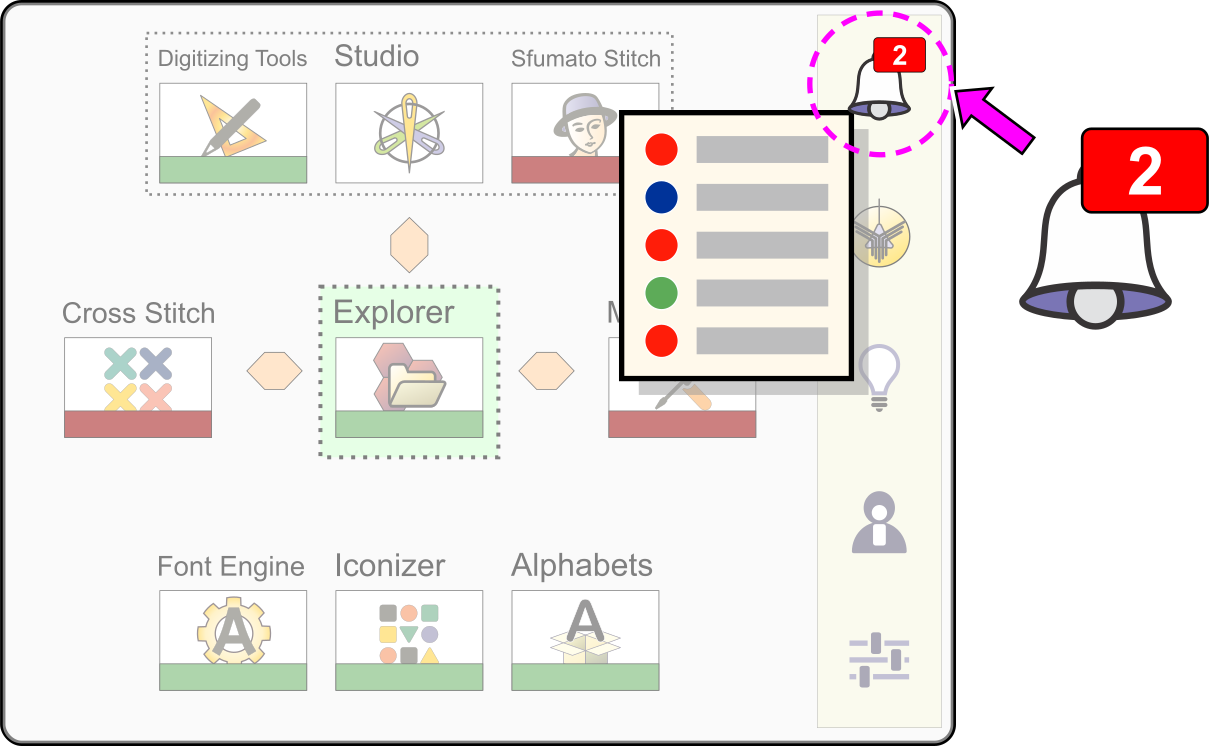
Message Center
The Message Center is a dedicated feature in Embird NEXT designed to provide users with a centralized overview of notifications originating from two sources: Embird's web server (Internet-based) and the Embird NEXT program itself (local).
Function and Access
The Message Center icon, located on the Dashboard's button bar, provides access to the message list.
- Access: The list is displayed when the user clicks the Message Center icon.
- Notification Icon: A red box containing a number on the Message Center icon indicates the quantity of new or unread messages.
Message Types and Priority
Messages are categorized by priority indicators in the list: Red for high priority, Green for medium priority, and Blue for low priority.
Messages from Embird Web Server (Internet)
These notifications inform the user about important system events and often contain personalized data:
Major Software Upgrade
Alerts the user to a new major version release. This message includes a link to download the new installer file. Major upgrades of Embird are typically released once per year. Upgrading is optional; if you do not wish to upgrade, the message may be deleted.
Software Update
Notifies the user of minor updates and patches. These may be released several times per year and are applicable only to the current version of Embird. While not mandatory, updates are highly recommended. If you choose not to update, simply delete the message.
Subscription Activated
Confirms the successful activation of a user's subscription.
Subscription Expires Soon / Subscription Has Expired
Provides critical alerts regarding the status of the user's paid subscription.
Notification
General information or marketing content.
Local Messages from the Embird Program
These notifications inform the user about local software status and background actions:
Welcome Message
An introductory notification provided upon the initial access of the program.
Demo Period Started / Demo Expires Soon / Demo Has Expired
Provides status updates regarding the 30-day trial period.
Local Actions
General information on program activities, such as a file download in progress.
Download Complete
Confirms the successful completion of an installation file download initiated by the program.
Each message type includes a specific set of associated buttons (e.g., "Open Link" in a web browser, "Download" for an installer file), enabling users to take immediate action.
Notification Message
This is a general message type. It may contain links to new tutorials, a "tip of the day," or other relevant information.
Welcome Message Functionality
The Welcome message, which appears upon first use, serves multiple functions designed to initiate user support and streamline the activation process.
Embird Unique ID (EUID) and Activation
The Welcome message displays the Embird Unique ID (EUID), which is a critical identifier for the software installation.
- The EUID is a unique code assigned when Embird is newly installed or reinstalled.
- It serves as the required address for receiving activation data via the Embird Message Center.
- Submitting the contact form sends this EUID to the support team, enabling them to match the installed software to a purchase transaction for activation purposes.
Pre-Purchase Form Submission
The contact form can be submitted before purchasing a subscription.
- Expedited Process: Submitting this information prior to purchase allows the support team to pair the installed Embird copy with any future transaction, leading to a faster and smoother activation.
- No Obligation: Submission of the form is not mandatory and does not create an obligation to purchase the software. The information is intended solely to expedite future correspondence and activation.
Download Complete Message
This message is generated when a user selects the Download button within a Major Software Upgrade or Software Update message and the installer file is successfully saved to local storage.
The buttons in the Download Complete message allow the user to locate the downloaded installer file using a operating system's default file explorer.
The installation process is initiated by running the downloaded file from the default file explorer of the operating system's default file explorer.
Disclaimer: Message Center Data Transmission
Interactions with the Embird NEXT Message Center, including opening messages or submitting help requests, may involve the transmission of specific technical and user data to Embird support via the Internet.
This transmitted data is used exclusively for internal purposes and diagnosis:
- Message Delivery: Data is used solely for the evaluation of message delivery status and system performance.
- Support & Diagnosis: If a help request is submitted, the data assists support personnel in diagnosing reported issues and contacting the user.
Transmitted Data
The following information may be transmitted to the Embird server:
- Embird Unique ID and version
- Embird user name and email address
- Operating system version
- CPU version
All data transmitted during these interactions is encrypted for security.