

Navigate
Products
Download
eShop
Upgrade
Overview
Training
Support


Navigate
Products
Download
eShop
Upgrade
About
Training
Support


In Embird, it is possible to create lettering using Ready-made (third-party) Alphabets. It is possible to load a whole alphabet and write words easily while using all other features of the alphabet interface, such as moving along a chosen baseline, gap adjustment, individual character moving/rotating/enlarging/skewing/mirroring, envelopes, etc. (See also tutorials Lettering 1 (General), Lettering 2 (Individual Settings), Lettering 3 (Envelope), and Lettering 4 (Custom Baselines)). This new feature is enabled for all users who have a registration of the Font Engine Plug-in. For others, it works in demo mode, allowing the user to enter only three characters.
1 - Run Embird and click the "Editor" menu to switch to the Editor window.
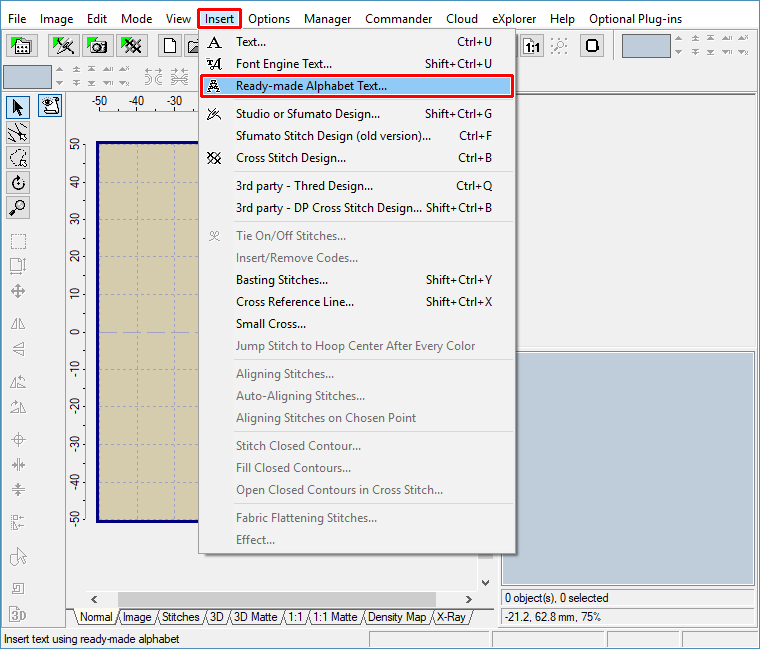
2 - Select the "Insert > Ready-made Alphabet Text" menu (Picture No. 1).
1. Select "Insert > Ready-made Alphabet Text" menu
3 - The "Insert Ready-made Alphabet Text" dialog box will appear on the screen (Picture No. 2). It is assumed that you have purchased some alphabets from third-party digitizers and have them stored somewhere on your hard disk, with each character in its own file. Click the "Add ready-made alphabet to list" button as shown in Picture No. 2.
2. Click "Add ready-made alphabet" button
4 - There exist two ways to load ready-made alphabets into Embird (Picture No. 3). Either you have the .TXT file which contains information about pairing "character X is stored in file Y" (button 1, see also step 12 below), or you select the whole folder which should contain only designs of the ready-made alphabet (button 2). Click the "Add Folder" button.
3. Click "Add Folder" button
5 - Select the folder which contains the designs of the ready-made alphabet (Picture No. 4). It is assumed that each character is stored in a separate file and that there are only alphabet characters stored in the chosen folder.
4. Select folder with characters of ready-made alphabet
6 - The selected folder was added to the list (Picture No. 5). The preview of two characters is shown on the right side of the window. Click the "OK" button.
5. List of ready-made alphabets with two characters preview
7 - Back in the "Insert Ready-made Alphabet Text" window, you will see the icons of all available characters of the chosen ready-made alphabet (Picture No. 6). It is possible to create lettering right now by double-clicking the icon of a character in the grid. However, because Embird does not know which character is shown on the chosen icon, it will show different characters in the "Text" box. Nevertheless, if you click the "OK" button, it will compile the correct text (lettering BIG in this example).
6. Double-click the icon in the grid to write the text
8 - If you plan to use this alphabet extensively, it is recommended to map its characters. Embird will learn this way which icon is associated with which character, so that pressing the "A" key on the keyboard will write the "A" character into the "Text" box, etc. To map the characters, just write down into the "Text" box the sequence of characters as you see them in the grid. If you write all characters shown in the grid, the "Map characters" button becomes enabled. Click this button (2 in Picture No. 7).
7. Mapping characters of ready-made alphabet
9 - Now you can create lettering by writing the words into the "Text" box (Picture No. 8).
8. Type in the text, the characters are correctly mapped into ready-made alphabet
10 - Click the "Properties" tab and the "Layout" tab to change various settings of the lettering (Picture No. 9).
Note:
There are several points shown on the layout area, allowing you the following:
A. Use red points to move the character along the baseline.
Depress the CTRL key to move only the selected character; otherwise, all characters placed after the selected character will move.
B. Use green points to rotate the character.
Depress the CTRL key to change the angle by 15 degrees.
Depress the ALT key to set the angle to 0 degrees.
C. Use teal points to resize the character, either horizontally or vertically.
Depress the CTRL key to change the size in larger steps.
Depress the ALT key to maintain the aspect ratio of width and height.
D. Use purple points to skew or mirror the character, either horizontally or vertically.
Depress the CTRL key to skew in larger steps.
Depress the ALT key to mirror the selected letter.
Depress the SHIFT key while moving the point to apply the operation to all characters.
Please note that undo/redo/reset operations are available for changes in Layout; use the buttons located below the layout area.
9. Change the various settings of lettering
11 - Click the "OK" button to compile the lettering and place it into the work area of the Editor (Picture No. 10).
10. Compiled lettering in work area of Editor
12 - Clicking the "Map Characters" button (Picture No. 7) creates a .TXT file in which each line contains information: "character X is stored in file Y" (Picture No. 11). If you are a digitizer who creates new alphabets and you plan to sell them, you should also include this .TXT file in your package.
11. The structure of text file with character map
Tip 1: You can also prescribe additional space to be left before and after placing the character. For example, if you want to leave 3 mm before placing the "I" character and 4 mm after placing the "I" character, please modify the line with the "I" character this way: I="filename.ext",30,40. You can also prescribe negative numbers if you want to decrease the gap. The distance is specified in tenths of a millimeter. Also, it is possible to prescribe a third parameter, which allows for a vertical shift of the character. For example, I="filename.ext",0,0,50 for moving the "I" character 5 mm up.
Tip 2: It is possible to change these settings in Embird by right-clicking on a character in the grid in Picture No. 6. A popup menu will appear, allowing you to modify the mapping, spacing, and vertical shift of the right-clicked character (Picture No. 12).
12. Change character properties
13 - If there is a .TXT file with information "character X is stored in file Y" available, please select it by pressing the "Add Text File" button in Step 4 above instead of the "Add Folder" button (Picture No. 13). In such a case, the alphabet is ready to use because all its characters are already mapped; the user does not have to do it themselves as shown in step 8 above.
13. Use "Add Text File" button instead of "Add Folder"
Back to Embird Tutorial Contents
Developed by BALARAD, s.r.o. company since 1997