

Navigate
Products
Download
eShop
Upgrade
Overview
Training
Support


Navigate
Products
Download
eShop
Upgrade
About
Training
Support


This tutorial explains how to enter the main registration password into Embird so that it stops expiring and turns from an evaluation (demo) version into the full version. It also explains how to enter the registration numbers for plug-ins (Alphabets, Font Engine, Cross Stitch, Digitizing Tools, Sfumato Stitch, Iconizer). It is assumed that you have already received an e-mail from us with the text form of the password. The following steps explain what to do with this password.
Note: Another way of inserting passwords into Embird is to use the PASSWORD.KLC file obtained during the back-up process - this is explained in the Inserting Registration Password from PASSWORD.KLC file tutorial.
1 - Run your e-mail client application and open the e-mail with the passwords you received from us after paying for Embird registration at https://www.embird.net/sw/embird/register.htm. Typically, you will receive two e-mails containing different forms of the password. Choose the e-mail without an attachment, containing the text form of the password (Picture No. 1).
1. Open e-mail with text form of password
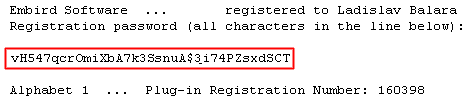
2 - Highlight the registration password and press the CTRL and C keys simultaneously to copy the selected text (password) into the clipboard.
Note: If you do not know how to copy text into the clipboard, please read the following: Place the mouse at the beginning of the password and click the left mouse button, holding it down while you drag over the password. At the end of the password, release the mouse button. The password should be highlighted. (If you make a mistake, click the mouse button once to unhighlight, then start over.) While it is highlighted, hold down the Ctrl key and hit the letter "c". This copies the password to an invisible clipboard.
3 - Run Embird and select the "Help > Registration" command from the main menu (Picture No. 2).
2. Select "Help > Registration" menu
4 - A dialog box will appear on the screen. Move the mouse pointer to the box for entering the password and click the left mouse button to focus this box (Picture No. 3).
3. A dialog box for entering password
5 - Press the CTRL and V keys simultaneously to paste the password from the clipboard into this box. Then click the "Register" button to continue (Picture No. 4).
4. Insert password from clipboard
6 - The User Account Control mechanism will warn you that this program will make changes to your computer (Picture No. 5). Click the "Yes" button.
5. UAC warning
7 - Embird will check the password. Wait several seconds until the password validation process is finished (Picture No. 6).
6. Main password accepted
1 - Run Embird; it will start in "Manager" mode.
2 - Select the "Help > Installed Plug-ins" command from the main menu.
3 - A dialog box containing the list of installed plug-ins will appear on the screen (Picture No. 7).
4 - Type in the number we have sent you (see the e-mail in Picture No. 1 above) into the "Registration Number" cell which corresponds to the plug-in you would like to register.
5 - Click the "OK" button to close this dialog box.
7. Installed plug-ins dialog box
1 - Run Embird; it will start in "Manager" mode.
2 - Check the bar at the top of the Embird Manager window - your name should be displayed there in the registered Embird.
3 - Check whether plug-ins are installed and registered by selecting the "Help > Installed Plug-ins" command from the main menu (Picture No. 8).
8. Check installed plug-ins
1 - Run Embird and select the "Help > Registration" command from the main menu.
2 - A dialog box will appear on the screen. Press the CTRL and ALT keys simultaneously and while holding them down, click the "Register" button (Picture No. 9).
9. Remove all passwords
3 - Confirm the password removal by clicking the "Yes" button (Picture No. 10).
10. Confirm passwords removal
4 - All Embird passwords will be removed and Embird will close. If you run it again, you will see in the bar at the top of the Embird Manager window that Embird is unregistered.
Back to Embird Tutorial Contents
Developed by BALARAD, s.r.o. company since 1997