

Navigate
Products
Download
eShop
Upgrade
Overview
Training
Support


Navigate
Products
Download
eShop
Upgrade
About
Training
Support


This tutorial shows how to use Embird on a tablet with Windows 10.
It was tested by the Embird Team on an inexpensive tablet with the following configuration: display size 7", resolution 1024 x 768, Intel(R) Atom(TM) Z3735G 1.33GHz, 4x core, 1GB RAM, 16GB, MicroUSB 2.0, OTG, Windows 10 Home.
1 - The current version of Embird is designed for desktop computers, and its controls are very small on a tablet screen. Therefore, it is impossible to touch-control Embird running on a tablet. It is necessary to use a mouse connected to the tablet's microUSB connector via a female USB to male microUSB cable as shown in Picture No. 1.
Update: The new version, Embird 2017, can run with larger controls on a tablet with Windows 8 or 10. Find more in the tutorial Running Embird with Larger Controls
1. Female USB to male microUSB cable
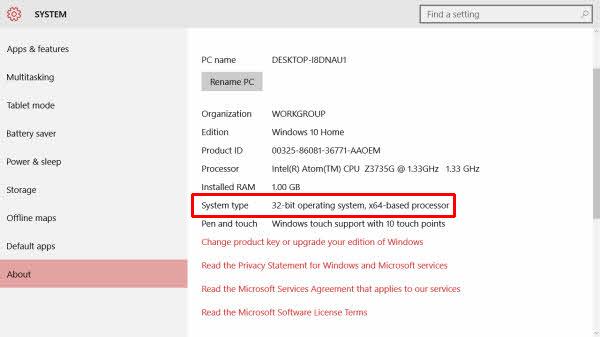
2 - Switch ON the tablet and check the version of Windows: Select the menu in the top left corner of the screen (Picture No. 2) and then click the "System > Settings > About" menu (Picture No. 3). In this case, it is the Windows 10 Home 32-bit operating system; therefore, the 32-bit version of Embird is suitable. Download and install the correct Embird version on your tablet, depending on the version of the operating system.
Note: The installation took more time compared to installing on a desktop PC, but it completed successfully.
2. Select menu in the top left corner of the screen
3. System information
Note: By default, the touch keyboard does not automatically pop up when tapping on text forms, address bars, or anywhere else that you need to type. The following two steps explain how to change that behavior.
3 - Click the Action Center icon in the bottom right corner of the screen (Picture No. 4). Switch on Tablet mode.
4 - Select the menu in the top left corner of the screen and click the "System > Settings > Tablet mode" menu. Switch ON the option "Make Windows more touch-friendly when using tablet" (Picture No. 4).
4. Tablet mode in Windows 10
5 - If you want to see Desktop icons as on your PC, switch OFF the Tablet mode (Picture No. 5). However, in such a case, you will probably need to connect a keyboard for inserting text. Connect a keyboard to your tablet either via a USB hub or via Bluetooth.
5. Tablet mode switched OFF
6 - Run Embird and wait until it appears on the screen. It takes a longer time to launch Embird (about 35 seconds on a slower tablet), but then it runs quite quickly and as expected (Pictures No. 6 and 7).
6. Alphabet plug-in on Windows 10 tablet
7. Iconizer plug-in on Windows 10 tablet
Back to Embird Tutorial Contents
Developed by BALARAD, s.r.o. company since 1997