

Navigate
Products
Download
eShop
Upgrade
Overview
Training
Support


Navigate
Products
Download
eShop
Upgrade
About
Training
Support


This section of the tutorial describes two methods for enhancing the visual texture of an embroidery design. By adjusting object parameters and generating new stitches, a plain fill area can be transformed to mimic the appearance of multiple connected column objects, providing increased depth to specific design elements. Additionally, drawing carving texture paths over a plain fill adds needle penetrations that complete the texture of the underlying fill.
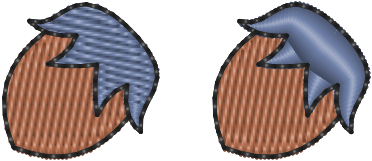
Fig. 1 Converting a plain fill to an Auto Column fill.
To improve the visual appeal of the design, we can convert specific fill areas to zig-zag areas, adding relief and texture. Select the blue portion of the nut, right-click, and choose Parameters. In the Fill tab, select the Auto Column option, click OK, and Generate Stitches. The object will now be filled with stitches as if it were composed of several connected Column objects.
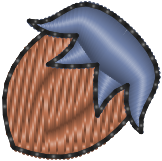
Fig. 2. Applying Carving to enhance fill texture.
The brown fill on the nut uses a default predefined pattern. You can enhance this texture by selecting a different pattern, defining a custom pattern, or adding Carving objects. Carving objects create additional needle points within the pattern to add realistic depth. Select the brown fill object and use the Carving Tool to add decorative curves as shown below.