

Navigate
Products
Download
eShop
Upgrade
Overview
Training
Support


Navigate
Products
Download
eShop
Upgrade
About
Training
Support


This tutorial explains how to use the Iconizer plug-in in Microsoft Windows 7.
There exist 32-bit and 64-bit types of Windows 7. You can find out which type of Windows 7 you have on your PC by right-clicking the Computer icon on the desktop and choosing the Properties command in the pop-up menu that appears on the screen. Check the System type line in the System section of the dialog box that appears on the screen to find out whether you have a 32-bit Operating System or 64-bit Operating System (Picture No. 1).Picture No. 1
If you have a 32-bit Operating System, please read the tutorial that explains how to use the Iconizer plug-in. This tutorial is intended for users of 64-bit Windows 7.
The 64-bit Operating System Windows 7 uses a 64-bit version of Windows Explorer, which cannot load libraries of the current 32-bit Iconizer plug-in. Therefore, Windows Explorer in Windows 7 (64-bit) does not show design icons using the Iconizer plug-in.
There exist three solutions to this problem:
Solution A: The Iconizer plug-in in Embird 2010 Build 8.8 (and above versions) shows icons also in the 64-bit type of Windows Vista and Windows 7. There is a new switch, "64-bit Windows," located below the "OK" and "Cancel" buttons in the "Options > Iconizer Settings" dialog box (Picture No. 2).Picture No. 2
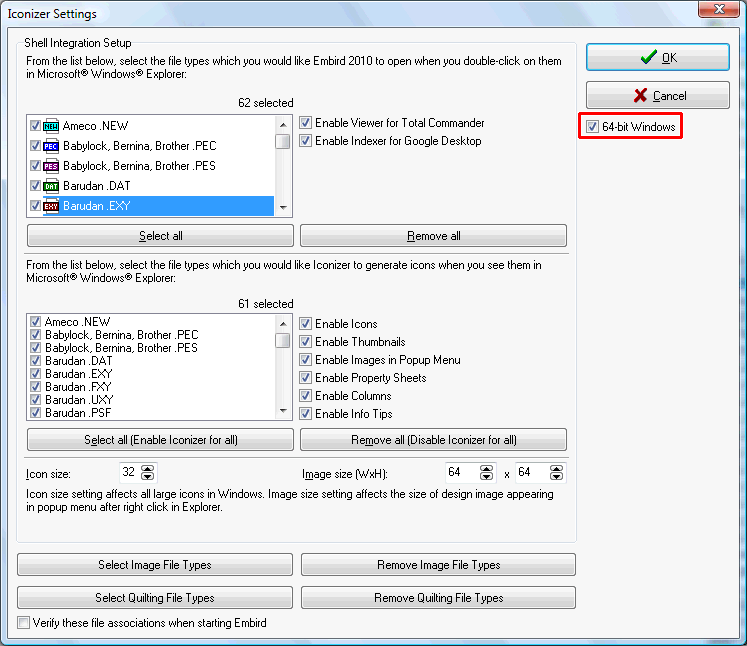
This temporary 64-bit Iconizer uses a 32-bit kernel; therefore, it is not as quick as the true 64-bit version. In case there is a problem with frequent Explorer crashes when using this 64-bit temporary Iconizer, please switch OFF the displaying of the DETAILS PANE in Windows Explorer via its menu "Organize > Layout > Details Pane" (Picture No. 3).
Picture No. 3
Solution B: Use the dialog box for opening or saving files from any 32-bit application running in 64-bit Windows 7.
For example:
1. Run Embird; it is a 32-bit application.
2. Select the Color Palette > Load menu. This will display a dialog box for opening a file (Picture No. 4).
3. Select the All Files (*.*) option in the Files of type box, and Large icons in the icon size menu (arrows 1 and 2 in Picture No. 4).
These steps will launch a 32-bit dialog box for opening files; therefore, the Iconizer plug-in does show icons for designs. Of course, first you must enable the showing of Iconizer icons for embroidery extensions as explained in the tutorial for the Iconizer plug-in, step 6.
Picture No. 4
Solution C: Run Embird and the Iconizer plug-in using Windows Virtual PC and Windows XP Mode, special programs developed for Windows 7 by Microsoft.
Warning: Please do not mistake this solution with setting the Compatibility mode to Windows XP (Service Pack 2) in the Properties of a file. This will not solve the problem with showing Iconizer icons in Windows Explorer.
1. Download and install Windows XP Mode and then Windows Virtual PC. Both programs are available for downloading at the Microsoft website at http://www.microsoft.com/windows/virtual-pc/download.aspx
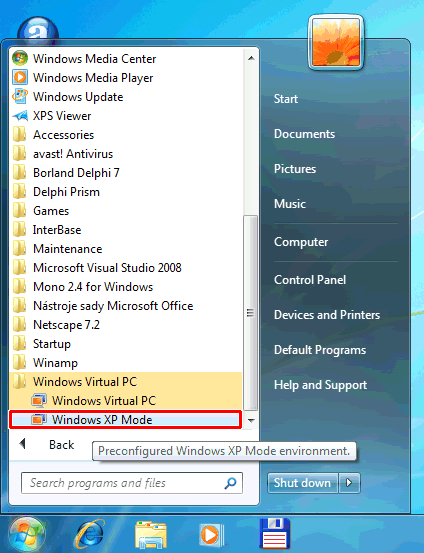
2. Launch Windows XP Mode by clicking in Windows 7 on Start > All Programs > Windows Virtual PC > Windows XP Mode (Picture No. 5 and Picture No. 6).
Picture No. 5
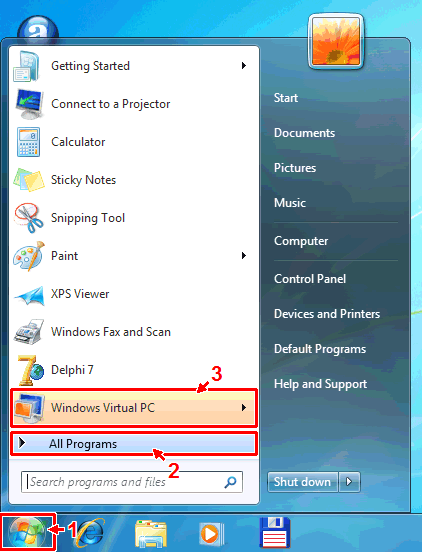
Picture No. 6
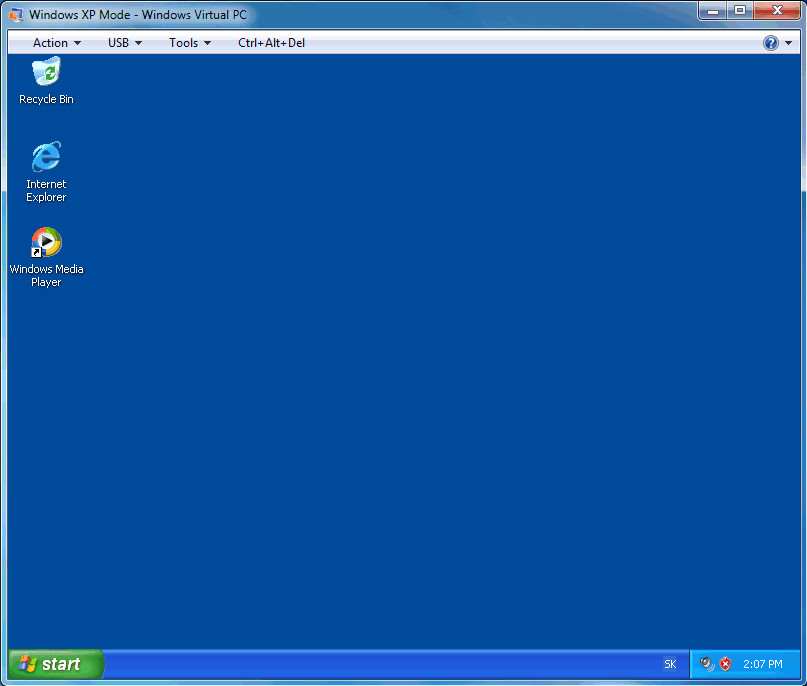
3. The Windows XP Mode window will be launched (Picture No. 7).
Picture No. 7
4. While running Windows XP Mode, please install Embird and plug-ins. Select the Start > Run menu to run the installation file of Embird or the plug-in (Picture No. 8).
Warning: Embird and plug-ins must be installed from Windows XP Mode, not from Windows 7!
Picture No. 8
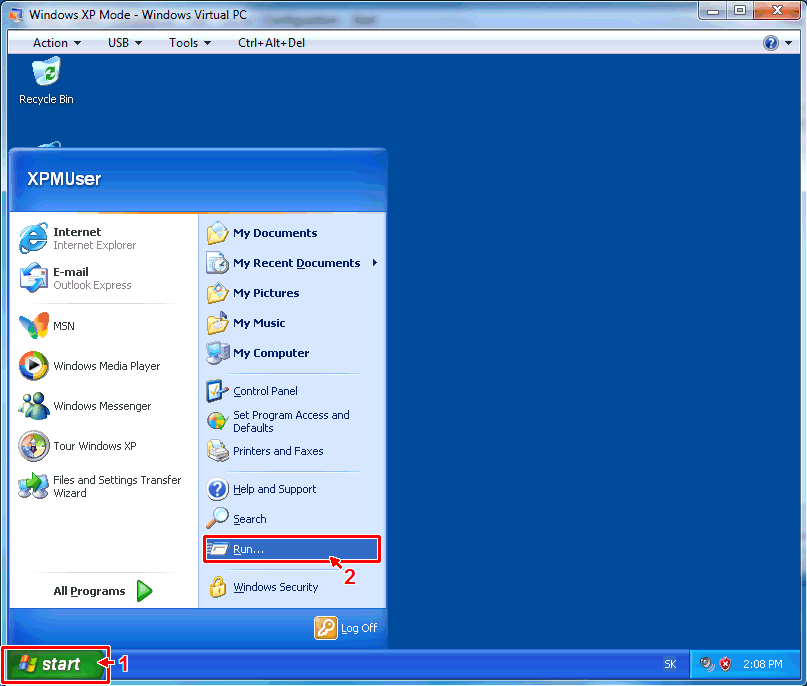
5. Browse to the installation file (arrow 1 in Picture No. 9), and run it by clicking the OK button to start the installation process (arrow 2 in Picture No. 9).
Picture No. 9
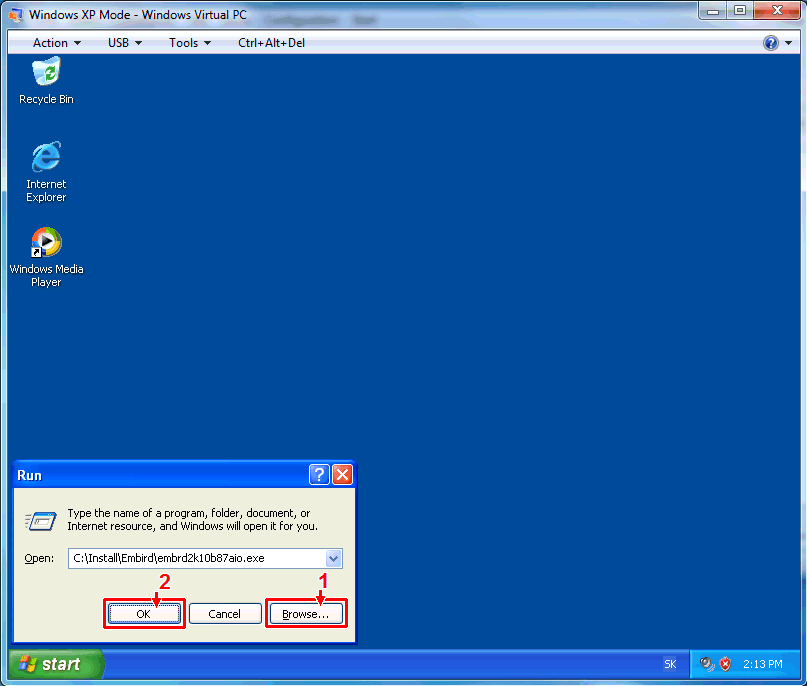
6. Once the installation process is finished, launch Embird by double-clicking its icon from the desktop in Windows XP Mode.
7. In Embird, click the eXplorer menu to launch Windows Explorer (32-bit) in Windows XP Mode (Picture No. 10).
Picture No. 10
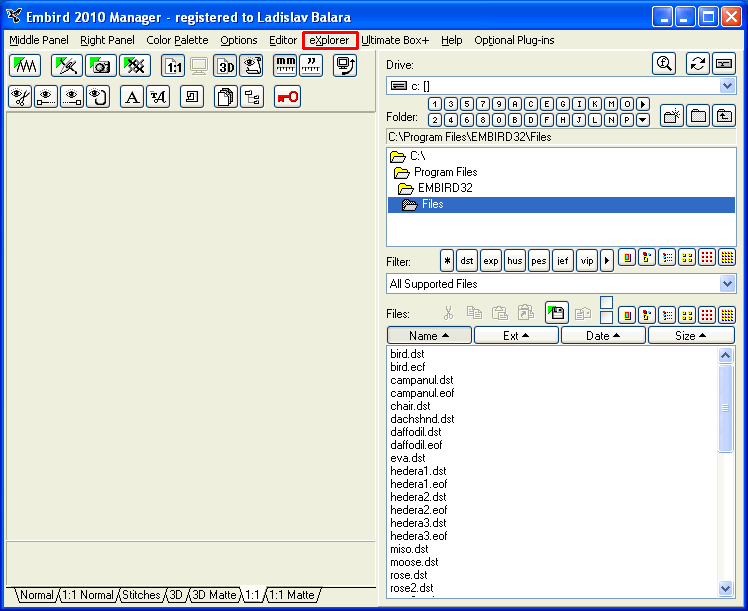
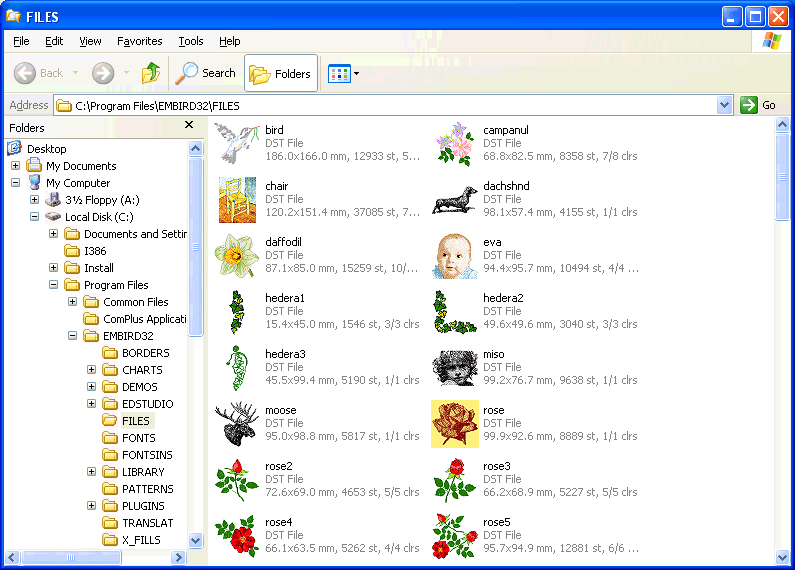
8. The Windows Explorer (32-bit) window will appear on the screen, showing the icons of designs (Picture No. 11). Of course, unless you have enabled the showing of Iconizer icons for embroidery extensions during the installation process, you should enable it as explained in the tutorial for the Iconizer plug-in, step 6.
Note: The Iconizer plug-in shows icons only in Windows Explorer (32-bit) when running in Windows XP Mode. It does not show icons in Windows Explorer (64-bit) launched directly from Windows 7 (64-bit).
Picture No. 11
Back to Embird Tutorial Contents
Developed by BALARAD, s.r.o. company since 1997