

Navigate
Products
Download
eShop
Upgrade
Overview
Training
Support


Navigate
Products
Download
eShop
Upgrade
About
Training
Support


Embird now also supports shortcut files. A shortcut file is a small file with a .lnk extension that contains only the location of another file on the computer.
Embird is capable of displaying designs that are referenced by shortcuts. This way, it is possible to sort designs—save the actual design into one folder and create shortcuts to this design in several other folders, with each folder representing a category (e.g., design "porsche.dst" might have shortcuts in folders named "Cars", "Motion", "Machines", "For Boys", etc.). There is a new command, "Paste Shortcuts to Files in Clipboard", in the "Right Panel" menu, allowing you to create shortcuts for files that were copied to the Clipboard via "Copy Files to Clipboard".
1 - Run Embird.
2 - Select designs in the "Files:" box on the right panel and view them as thumbnails (Picture No. 1). See also the tutorial that explains Viewing Designs. In this example, we want to create a folder (category) named "Flowers" with shortcuts to the "plesnivec.dst", "rose2.dst", and "rose3.dst" files.
1. View designs as thumbnails
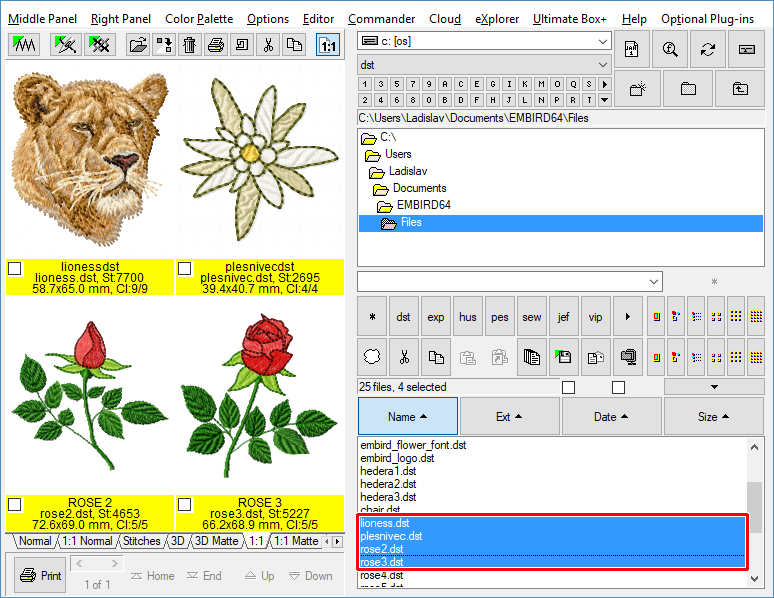
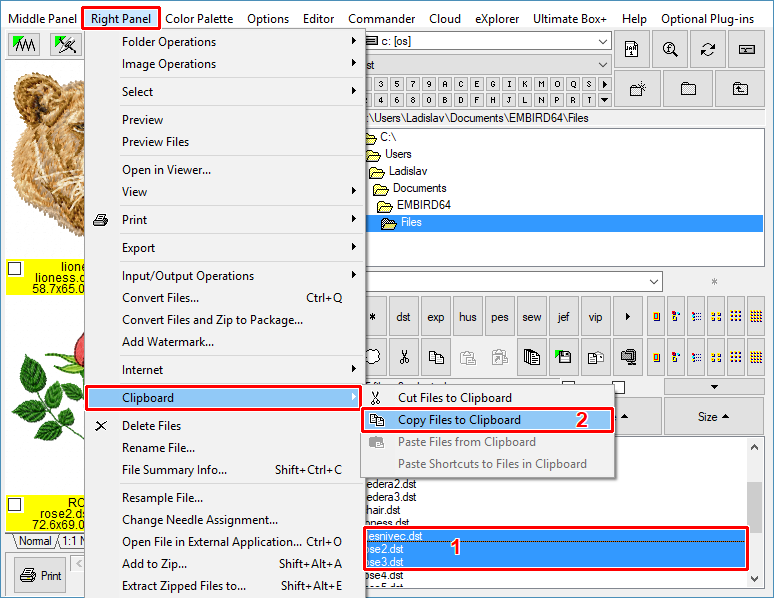
3 - Select the "plesnivec.dst", "rose2.dst", and "rose3.dst" files in the "Files:" box on the right panel (Picture No. 2). You can use the steps explained in the Select Marked Files tutorial for selecting designs that you want to move into the "Flowers" category (i.e., create shortcuts for selected designs in a new folder).
4 - Once the files are selected, select the "Right Panel > Clipboard > Copy Files to Clipboard" command from the main menu (Picture No. 2).
2. Select designs and copy them to Clipboard
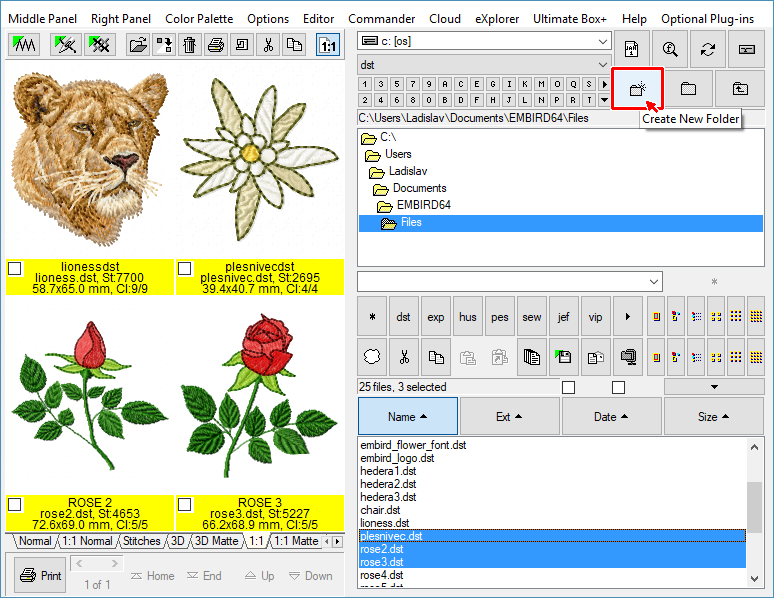
5 - Click "Create New Folder" to create a new sub-folder of the currently selected folder in the "Folder:" box (Picture No. 3).
3. Click "Create New Folder" button
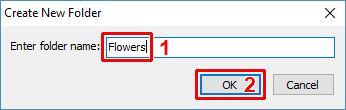
6 - Choose a name for this new sub-folder; it is "Flowers" in this example (Picture No. 4). Continue by clicking the "OK" button.
4. Create new folder "Flowers"
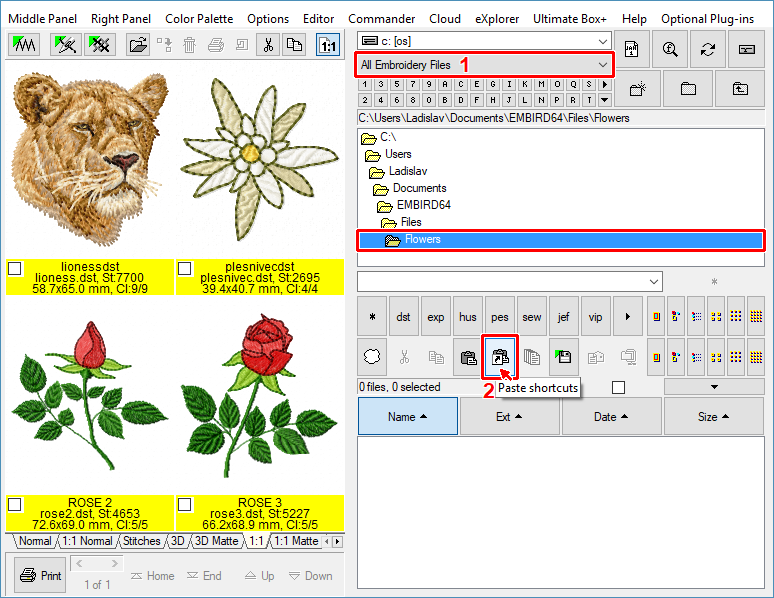
7 - The new folder "Flowers" is now selected and is empty. Make sure that the "All Embroidery Files" option is chosen in the "Filter:" box (arrow 1 in Picture No. 5).
8 - Click the "Paste shortcuts" button to create shortcuts to the files in the clipboard (arrow 2 in Picture No. 5).
5. Paste shortcuts to files in clipboard
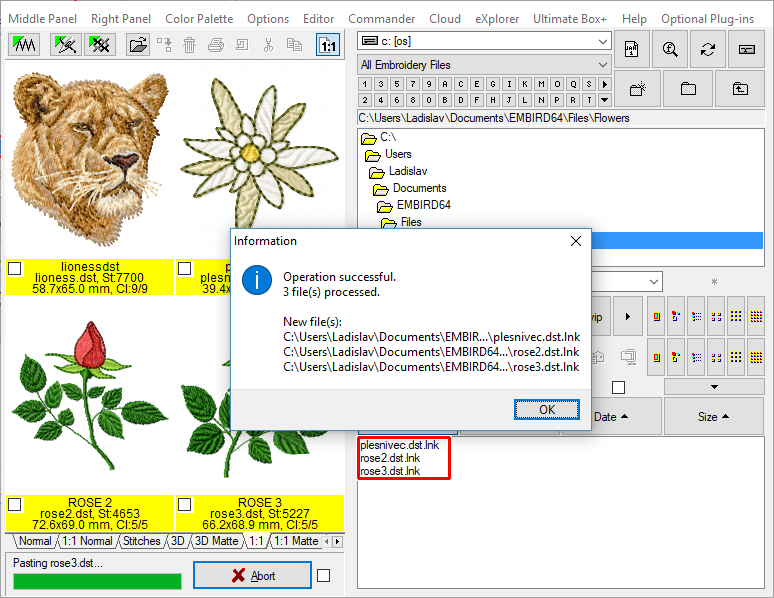
9 - The new shortcuts will be created; check the new files with the .lnk extension in the "Files:" box (Picture No. 6).
6. Shortcuts are created
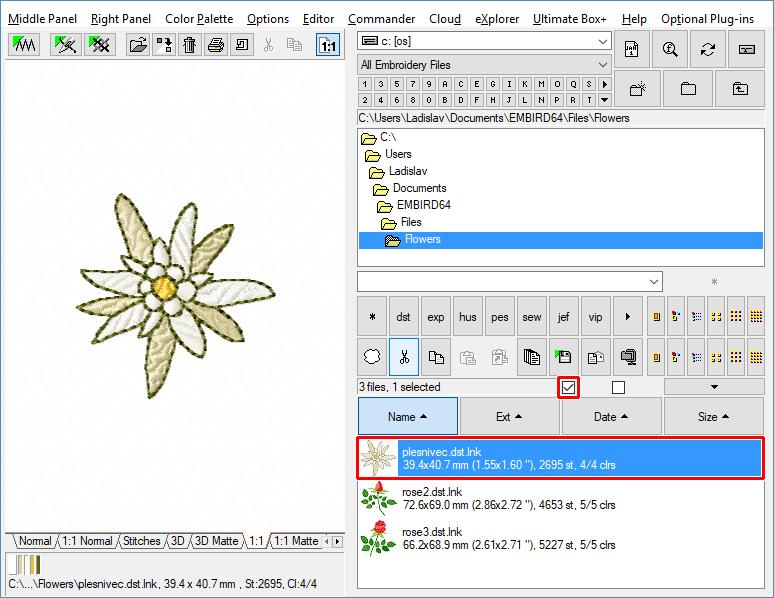
10 - If you switch ON the "Preview Files" option (which is available only for registered users of the Iconizer Plug-in), you will see the design icon and information showing the design size, stitch count, and the number of colors.
11 - You can double-click the shortcut to view the design that is referenced by the shortcut (Picture No. 7).
7. View file referenced by shortcut
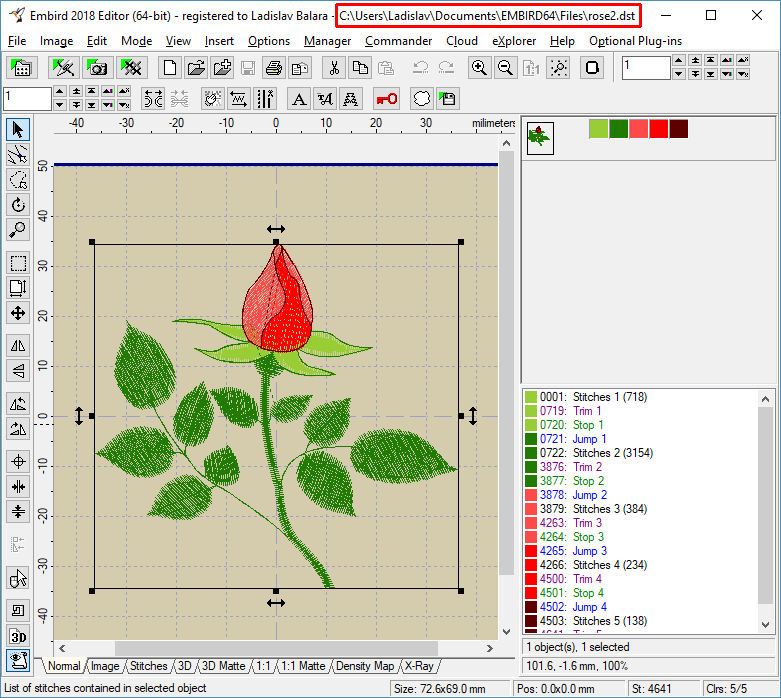
12 - If you click the "Editor" menu while the shortcut is selected in the "Files:" box on the right panel, the design referenced by the shortcut will be opened in the Editor (Picture No. 8). If you modify this design, all shortcuts will show the updated design. (Because shortcut files contain only the location of the design and no stitches, changes to the design will be automatically reflected in all shortcuts in all categories that reference that design.)
8. Open the design in Editor
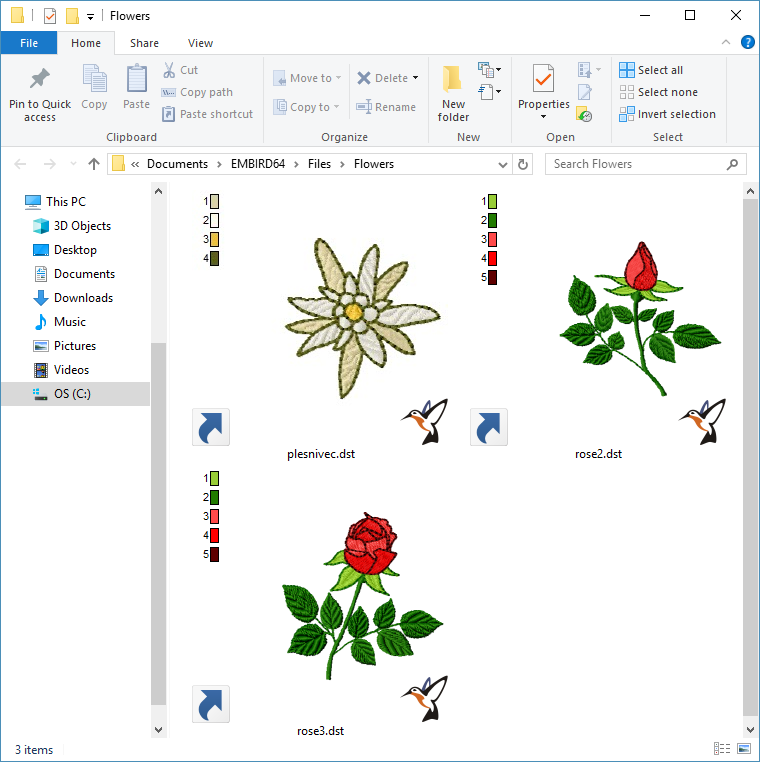
13 - Click the "eXplorer" menu to launch Microsoft® Windows® File Explorer (Picture No. 9). Shortcut files will show the contents of the design they are referencing, so you can easily browse through the categories (folders).
9. Browse through the categories in File Explorer
Back to Embird Tutorial Contents
Developed by BALARAD, s.r.o. company since 1997