

Navigate
Products
Download
eShop
Upgrade
Overview
Training
Support


Navigate
Products
Download
eShop
Upgrade
About
Training
Support


Quick Searcher allows you to quickly locate design, photo, document, music, or video files on your hard disk.
It works in the following way: The user specifies a maximum of 6 folders which contain design files, photo files, etc. Each of these folders might be either closed - meaning that you do not save new files to that folder (and its sub-folders), or open - if you still save files there. Then, Quick Searcher creates databases which contain the path location of files stored in the specified folder and its sub-folders. Additional information is inserted into the database, such as design size, number of colors, and stitches in the case of a design file, or the date when a picture was taken in the case of images, etc. When searching for a file, Quick Searcher compares the search criteria against data stored in the databases and quickly shows the results.
Note: Registration of the Iconizer plug-in is required; otherwise, Quick Searcher works only in demo mode with embroidery designs.
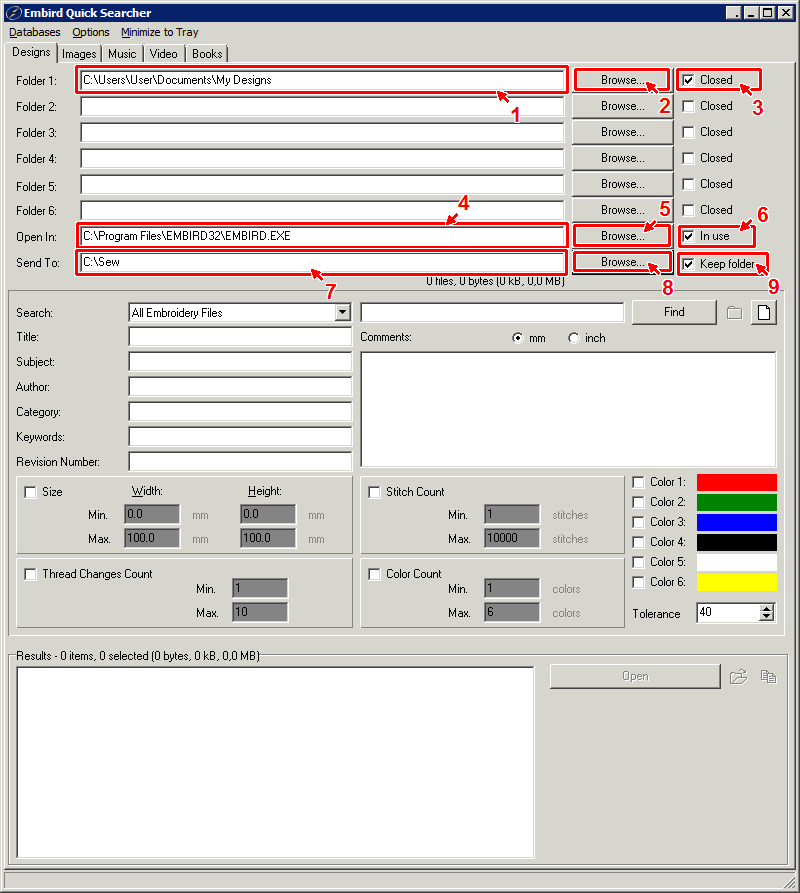
1 - Launch Embird Quick Searcher by double-clicking its icon on the desktop (Picture No. 1).
Picture No. 1
2 - The Quick Searcher window will appear on the screen (Picture No. 2).
3 - Choose folders which contain designs (arrow 1). You can type in the folder name or click the Browse button to choose a folder from the list (arrow 2). If you do not save new files to that folder anymore, switch ON the option Closed (arrow 3).
4 - Optionally, you can also specify an application which will open files when you click the Open button (arrow 4 and 5). If not specified, or if the In use option is OFF (arrow 6), then the file will be opened by the default application associated with its extension.
5 - Optionally, you can specify a folder into which files will be copied when you click the Copy button (arrow 7 and 8). The Keep folder option (arrow 9) then specifies whether the file will be copied with a relative path including the sub-folder, or directly into the specified folder.
Picture No. 2
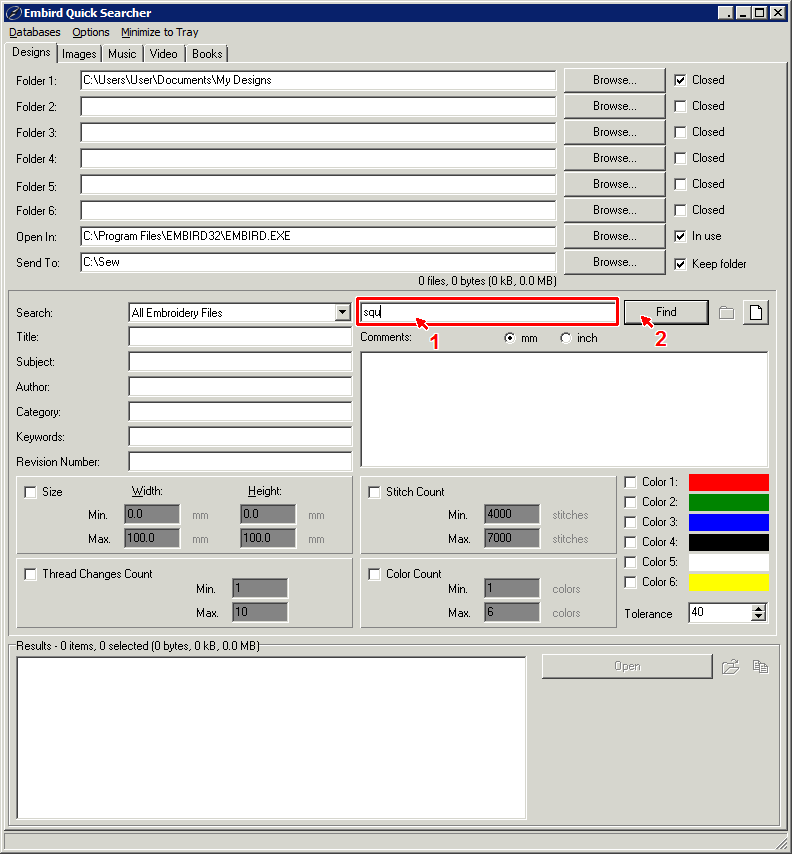
6 - Specify search criteria and click the Find button (arrow 2). In this example, the name of the file should contain the "squ" string (arrow 1). Other search criteria are available - file extension, design size, stitch count, thread changes count, color count, or specific design color with allowed tolerance for differences in RGB components. You can also specify fields used by Windows for File Summary Information - see tutorial File Summary Info.
Picture No. 3
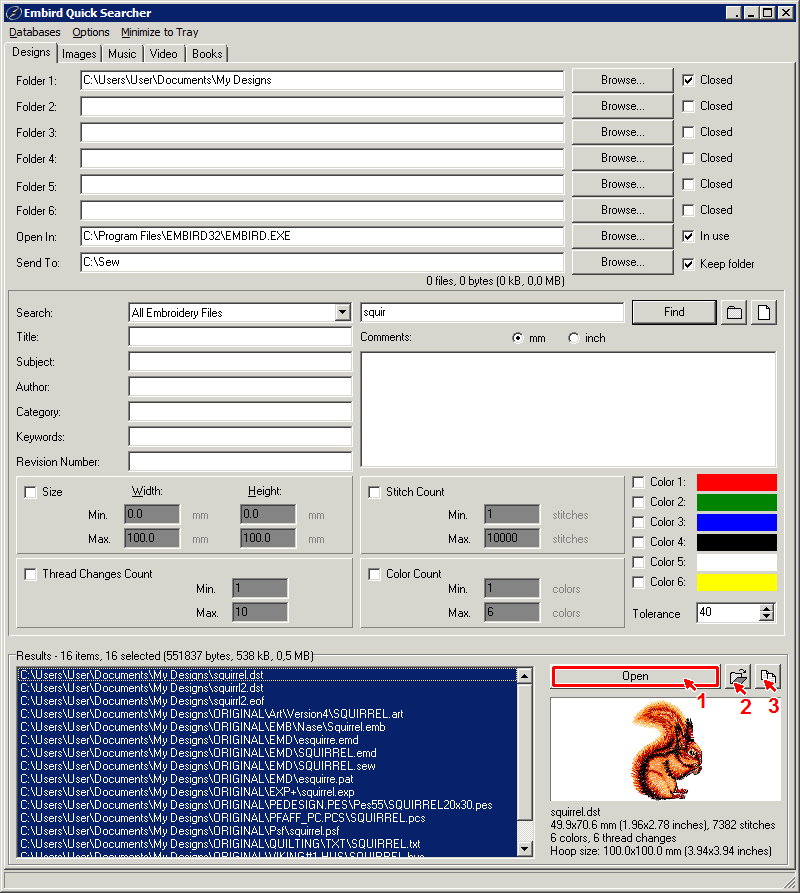
7 - The search results are displayed in the box at the bottom of the window - 16 results in the example (Picture No. 4). Click the Open button (or double-click the file path in the list) to open the selected file in the specified application (arrow 1). Click the button with arrow 2 if you want to launch Microsoft® Windows® Explorer and show the folder of the selected file. Click the button with arrow 3 to copy selected files to the Send To folder.
Picture No. 4
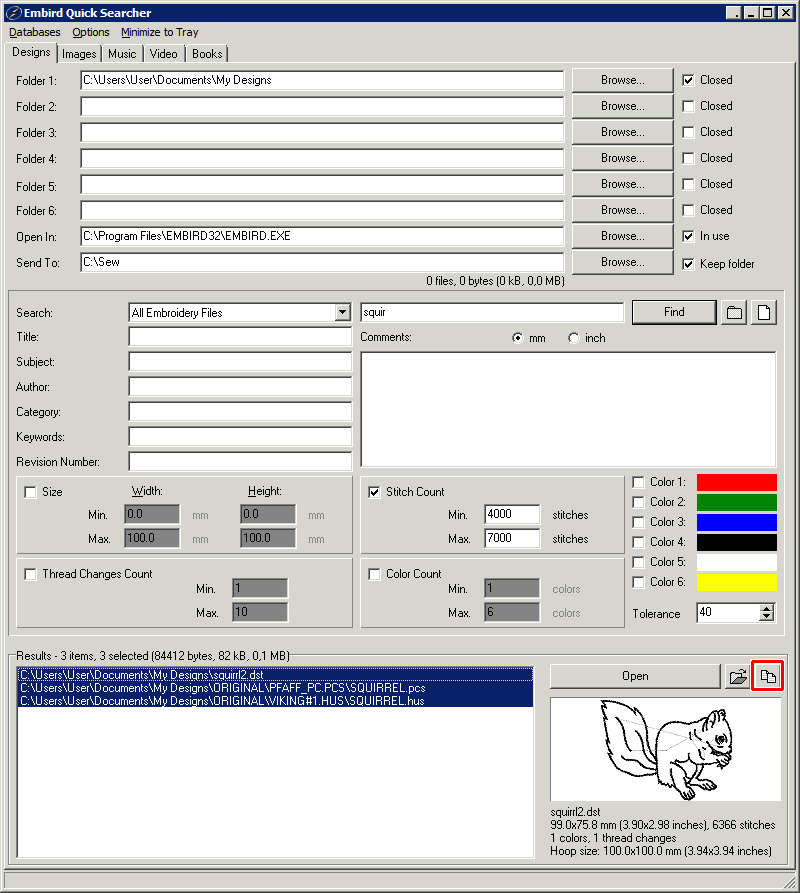
8 - Another search criterion was specified - the stitch count should be in the interval 4000 to 7000 (Picture No. 5).
9 - When the search process is completed, the result box now contains only 3 items (Picture No. 5).
Picture No. 5
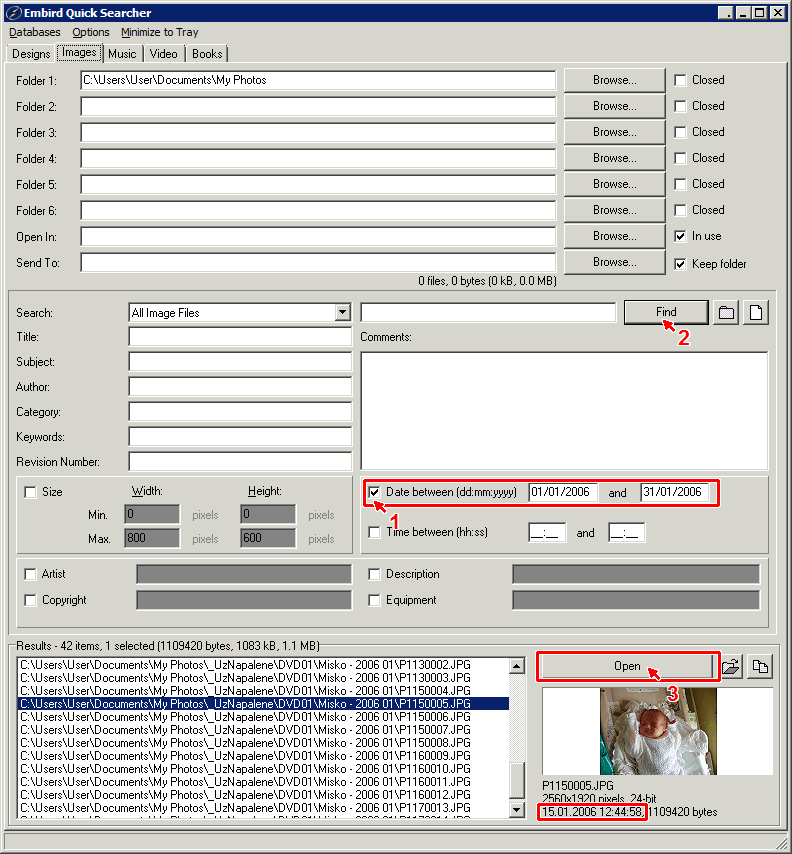
10 - Change the tab from Designs to Images (Picture No. 6).
11 - Specify folders with your digital photos (jpg, tiff, bmp, etc.). Either type in the path or use the Browse button to select from a list. If you do not add new photos into the chosen folder, switch ON the Closed option.
12 - The JPG image files contain various information about the photo - e.g., date and time when the picture was taken, or a description of the equipment which was used. The Quick Searcher allows you to specify some of these criteria and search for photos. In this example, the photo being searched should have been taken between January 1, 2006, and January 31, 2006 (arrow 1 in Picture No. 6). Click the Find button to start searching.
13 - Once the process is finished, click the Open button to launch the selected file into the default application for displaying images (arrow 2).
Picture No. 6
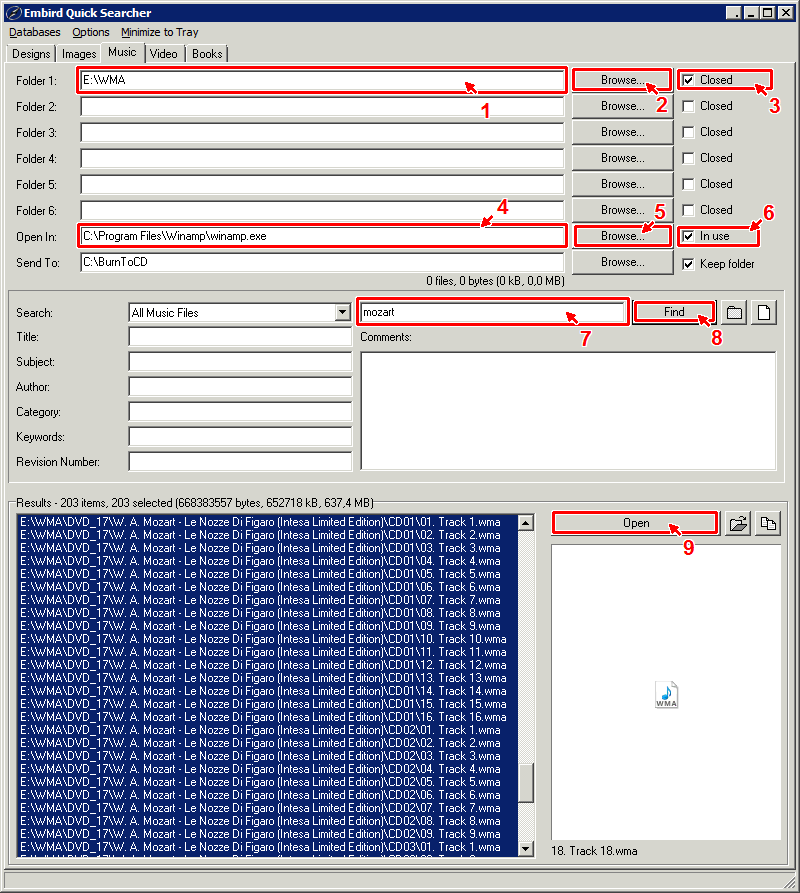
14 - Change the tab from Images to Music (Picture No. 7).
15 - Specify folders with your music files (mp3, wma). Either type in the path or use the Browse button to select from a list. If you do not add new music files into the chosen folder, switch ON the Closed option.
16 - Type in the word which is contained in the file name of the music file - e.g., Mozart - and click the Find button (Picture No. 7).
17 - Once the search process is completed, you will see the list of files which fulfill the search criteria in the Results box. Click the Open button to launch the playlist of selected files into the application specified in the Open In box (arrow 4 and 9).
Picture No. 7
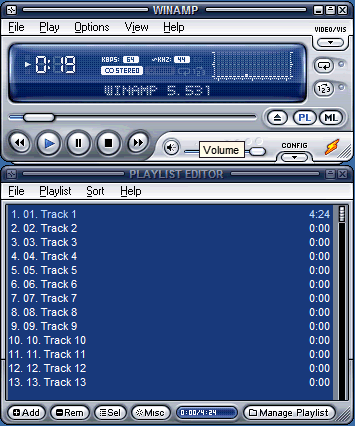
18 - In this example, the WinAmp Media Player ® application is launched and it starts to play music (Picture No. 8).
Picture No. 8
19 - The window of the Quick Searcher application was minimized to the tray (Picture No. 9). Click its icon there if you want to start a new search.
Note: The Options menu contains settings which allow you to switch OFF the minimization to the tray. Other settings in the Options menu allow you to shorten the time of database building - it is possible to switch OFF the storing of File Summary Info or file contents (for designs and images) into the database. The Database menu contains commands which allow you to build all databases (Designs, Images, Music, Video, Books) and shut down PC when done.
Picture No. 9

Back to Embird Tutorial Contents
Developed by BALARAD, s.r.o. company since 1997