

Navigate
Products
Download
eShop
Upgrade
Overview
Training
Support


Navigate
Products
Download
eShop
Upgrade
About
Training
Support


The following tutorial explains how to print a template from Editor. In Embird, it is possible to change the position of the design being printed; you can move the design across the paper to the desired position if you want to save paper space—for example, if you want to print two or more designs using the same sheet of vellum.
Note: You can also print the documentation for your designs from Manager, using the commands contained in the "Right Panel > Print" menu. There are several types of documentation available in this menu.
1 - Run Embird and click the "Editor" menu to switch to the Editor window.
2 - Select the "File > Open" menu to open the file you want to print (Picture No. 1).
1. Open design
3 - Click the "File > Print Template without Texts" menu if you want the possibility to specify the design position on the printer paper (Picture No. 2).
2. Select "File > Print Template without Texts" menu
4 - The "Print" dialog will appear on the screen (Picture No. 3). Choose your printer in the "Name:" box and click the "OK" button to continue.
3. Choose printer
5 - Optionally, change the printing parameters (Picture No. 4).
4. Print options
6 - The "Print Layout" dialog box will appear on the screen (Picture No. 5). The cyan rectangle represents the hoop being printed. In this example, the hoop size is 100 x 100 mm, as seen in the caption displayed in the middle of the cyan rectangle. The captions in the corners display the current position of these corners on the printer paper.
5. Print layout
7 - You can change the hoop position by moving the mouse pointer to the cyan rectangle, pressing and holding the left mouse button, and moving the mouse to change the position of the rectangle. Finally, release the left mouse button (Picture No. 6).
6. Move hoop to new location on paper
8 - You can double-click the paper area to add text. This will display a dialog box with pre-defined text related to the design being printed (Picture No. 7). You can delete this text or add new lines. If you want to change the font of the text, click the "Font" button and choose a new one from the dialog box that appears on the screen. Click the "OK" button to continue.
7. Add optional text
9 - You can also move the rectangle containing the text across the paper area (Picture No. 8). Use the same technique as explained in step 7. Finally, click the "OK" button to print the template.
8. Print template
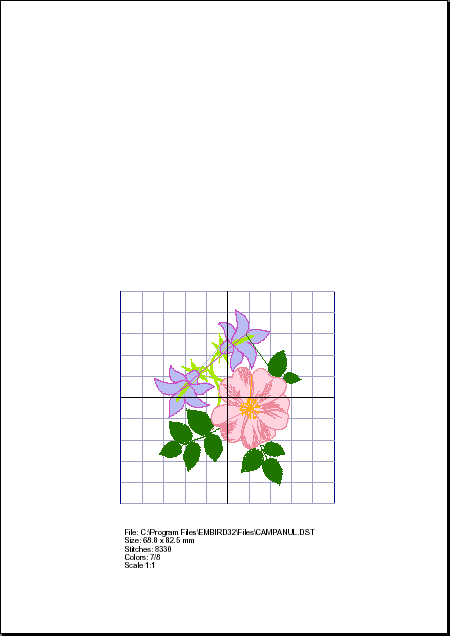
10 - The template will be printed with the hoop area and text area located in their specified positions (Picture No. 9).
9. Printed template
Back to Embird Tutorial Contents
Developed by BALARAD, s.r.o. company since 1997