

Navigate
Products
Download
eShop
Upgrade
Overview
Training
Support


Navigate
Products
Download
eShop
Upgrade
About
Training
Support


Use this command if you want to write designs to a Janome JEF CompactFlash card. It is assumed that you have the Janome ATA card inserted in the PCMCIA slot of your notebook, or a card reader/writer hardware attached to your PC, and that this card works like another disk drive on your PC (e.g., drive H:).
1 - Run Embird; it will start in "Manager" mode.
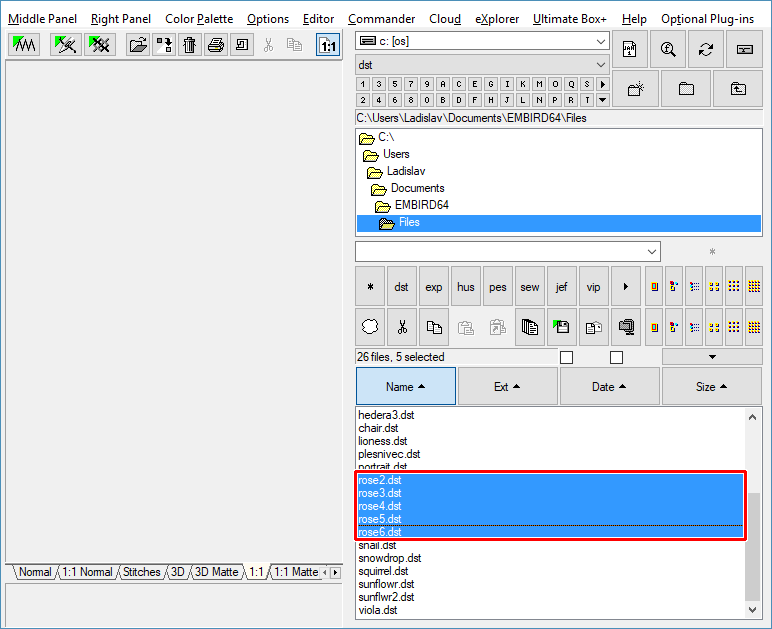
2 - In the "Files:" box at the right side of the screen, select the design which you want to write to the Janome JEF CompactFlash card. To select a design, please move the mouse pointer to its file name and click the left mouse button (Picture No. 1). You can select multiple files: Move the mouse pointer to the file name of the first design in the "Files:" box at the right side of the screen, depress the left mouse button, and hold it down while moving the mouse pointer over the file names of the other designs. When the mouse pointer is over the last design, please release the left mouse button.
1. Select files to be written to CompactFlash card
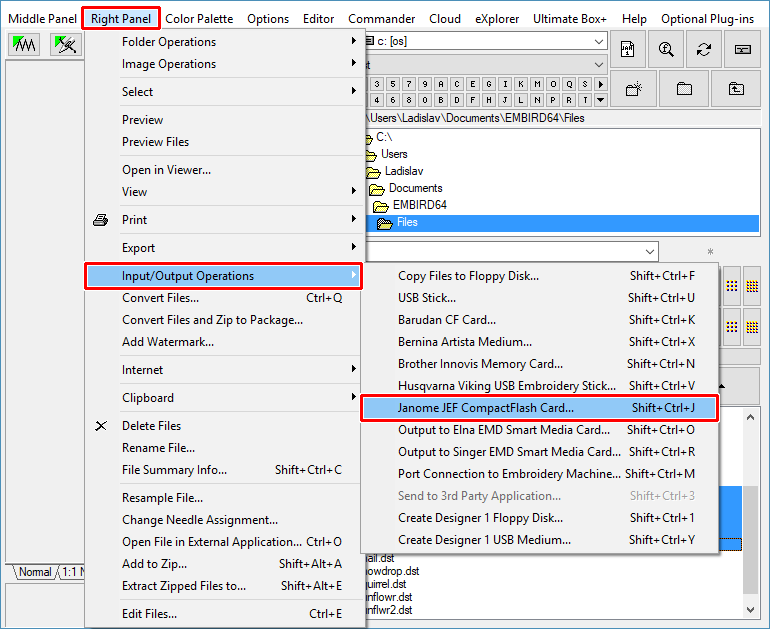
3 - Select the "Right Panel > Input/Output Operations > Janome JEF CompactFlash Card" command from the main menu (Picture No. 2).
2. Select "Right Panel > Input/Output Operations > Janome JEF CompactFlash Card" menu
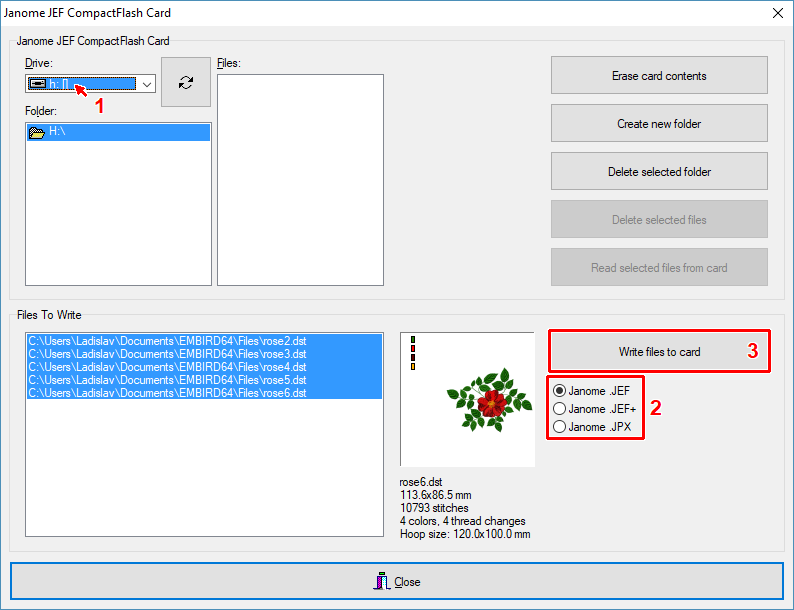
4 - A dialog box will appear on the screen (Picture No. 3). Choose the "Drive:" which contains the CompactFlash card. In this example, it is the "H:" drive. The upper box shows the folders and files of the Janome JEF CompactFlash card (empty card in this example).
5 - The bottom box shows the files which you are going to write to the card (Picture No. 3). Click the "Write files to card" button to start writing the designs to the card.
3. Select drive, format and write files to card
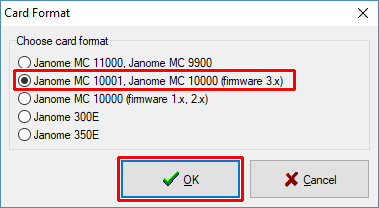
6 - If you are writing to an empty card, Embird will ask you about the card format (Picture No. 4). Select your format and click the "OK" button to continue.
4. Choose card format
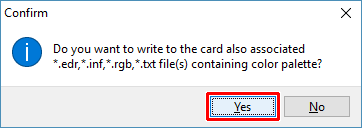
7 - Another dialog box will appear on the screen, inquiring whether you want to save the Embird color palette for each design to the card as well (Picture No. 5). This color palette is stored in a separate file with an .EDR extension. Click the "Yes" button if you want to save the color palette, because the ".jef" file format offers only a limited color palette, and if you don't save the real palette along with the design, it might happen that the next time you display this design from the card, it will have slightly different colors.
5. Save also color palette?
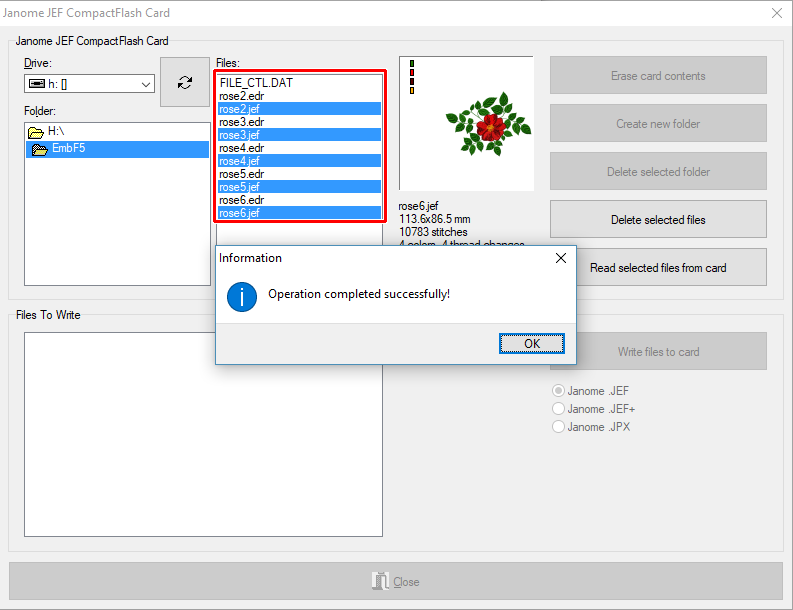
8 - Embird will write the files to the Janome JEF CompactFlash card and will display the result of this operation (Picture No. 6). In this example, the "ROSE2.JEF", "ROSE3.JEF", "ROSE4.JEF", "ROSE5.JEF" and "ROSE6.JEF" designs were written to the card. The corresponding files with an .EDR extension contain the Embird color palette for these designs.
6. Result of write operation
9 - The Janome JEF CompactFlash card is now ready for use. You can eject it from the disk drive and use it with your embroidery machine.
Back to Embird Tutorial Contents
Developed by BALARAD, s.r.o. company since 1997