

Navigate
Products
Download
eShop
Upgrade
Overview
Training
Support


Navigate
Products
Download
eShop
Upgrade
About
Training
Support


Glyph Identikit allows users to find the right font among thousands in a matter of minutes. It functions as a search engine, using font attributes (features) or specific letter characteristics instead of keywords. Glyph Identikit 3.0 recognizes over 5,300 CorelDRAW, Microsoft Windows, Microsoft Word, and other TrueType fonts. The software also installs fonts and prints lists of found fonts. With Glyph Identikit, you can print a booklet containing all your TrueType fonts.
Glyph Identikit does not include any fonts itself. Instead, it contains font samples and displays the source of each font to help users locate them. If supported fonts are missing from the user's system, the program will show a built-in preview. Users can typically locate and download the font online with one click.
Clicking a font sample prompts Glyph Identikit to search for the font on the Internet, where many fonts or similar alternatives are available free of charge for instant use. This makes Glyph Identikit a powerful identification tool with a virtually unlimited number of font matches.
Searching with Glyph Identikit differs for common simple fonts and special ornamental fonts. Common fonts are described by attributes, allowing users to search by choosing several distinctive features (such as a flat top on the letter "A" or concurrent side bars on the letter "M"). Special fonts, such as Middle Age or Western styles, are classified into separate categories.
Glyph Identikit will scan chosen drives on your computer for all TrueType fonts (even those not currently installed) automatically after its first run. It is recommended to select the optimization option from the scanning menu. Database optimization may take several minutes, but it will significantly increase the speed of Glyph Identikit.
Note: You should copy all your fonts to your hard disk (into any folder) to use Glyph Identikit efficiently. Otherwise, Glyph Identikit will use alternative samples instead of missing fonts. Run the scanning process manually every time you add new fonts to your hard disk. This command is accessible through the main menu: go to Font and then Scan Drives For Fonts.
Warning: If you are identifying an unknown font from artwork, keep in mind that the font in the artwork may be stretched, skewed, outlined, or otherwise modified compared to the original font.
Searching methods differ for common and special fonts:

Common fonts are simple fonts that may have serifs and can be bold, hollow, or italic.
Simple fonts with shadows or highlights are classified as special fonts. Select  Attributes from the top of the screen. Four search methods are available in this mode:
Select several of the most significant attributes from the Include panel by clicking on them
(3-5 chosen attributes are usually sufficient). Then, click the  Start Search button.
A tooltip with the attribute description appears when the cursor hovers over an attribute.
If possible, use only the attributes you are certain of. To begin a new search, click the
Start Search button.
A tooltip with the attribute description appears when the cursor hovers over an attribute.
If possible, use only the attributes you are certain of. To begin a new search, click the  New Search button to clear all attributes. By increasing the Maximum Variances, you can extend the
search to fonts that do not exactly match your selection.
New Search button to clear all attributes. By increasing the Maximum Variances, you can extend the
search to fonts that do not exactly match your selection.
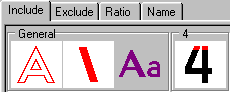
If you wish to exclude fonts with certain attributes, select those attributes in the Exclude panel and click the Start Search button.

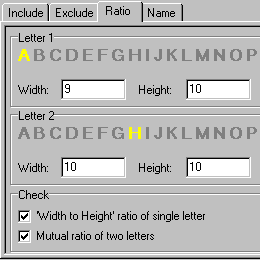
In this mode, the search criterion is the width-to-height ratio of the letters. You may enter letter sizes in any units, as only the ratio is essential. If you enter the size of only one letter, you may not find the corresponding font because the unknown font in the artwork may be stretched vertically or horizontally. A better method is to enter the sizes of two different letters and choose the Mutual ratio of two letters option. This eliminates the influence of stretching on the width-to-height ratio.
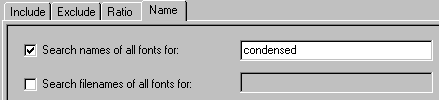
Enter the name or part of the name (e.g., "condensed") of the font you are searching for into the edit box. The name comparison is not case-sensitive.
Click the  icon in Attributes mode to find fonts similar
to a specific font in the Glyph Identikit database. This is useful for finding identical-looking
fonts under different names if you do not have the specific font required.
icon in Attributes mode to find fonts similar
to a specific font in the Glyph Identikit database. This is useful for finding identical-looking
fonts under different names if you do not have the specific font required.

Special fonts are ornamental styles, such as Middle Age fonts or easily recognizable
designs (e.g., fonts adorned with flowers or snow). This group also includes fonts similar to
special styles like Bauhaus, Revue, or Brushscript. Simple fonts with highlights or shadows are also included.
To search these, select  Categories at the top of the screen.
Three search methods are available in this mode:
Categories at the top of the screen.
Three search methods are available in this mode:
Select any category and click the Start Search button.
Helpful tooltips appear when the cursor hovers over a category icon. Categories are grouped by priority.
If a font belongs to two or more categories, search the higher-priority category first.
For example, a Middle Age font with a melting effect should be searched for in the "Melting or bloody" category.

This functions the same as in Attributes mode.
This functions the same as in Attributes mode.
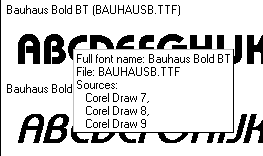
The list of found fonts is displayed at the bottom of the screen (bottom-left panel) along with sample texts (bottom-right panel). Right-clicking on a sample allows you to print the list, find similar fonts, change the sample text, or zoom and install the font. You can print booklets of fonts located on your disks from the main menu: go to Font and then Print Booklet of Fonts. Glyph Identikit displays your custom sample text only if it can locate the font file. If the font is not present on your computer, an alternative sample will be shown. Hovering over the sample text will display font information, including its source (e.g., CorelDRAW 7, 8, or 9).
Glyph Identikit provides three modes for displaying search results:
1. Full View - Displays several lines of sample text, one font per page.
2. Normal View - Displays one line of sample text for each font, five fonts per page.
3. Brief View - Displays three sample characters for each font, 42 fonts per page.
Pages can be scrolled using the small buttons with  arrows.
Click a font name to search for it on the Internet.
If the font file is on your computer, click the displayed sample to print or install it.
Back to Embird Tutorial Contents
Developed by BALARAD, s.r.o. company since 1997