Color Mixer
Custom colors
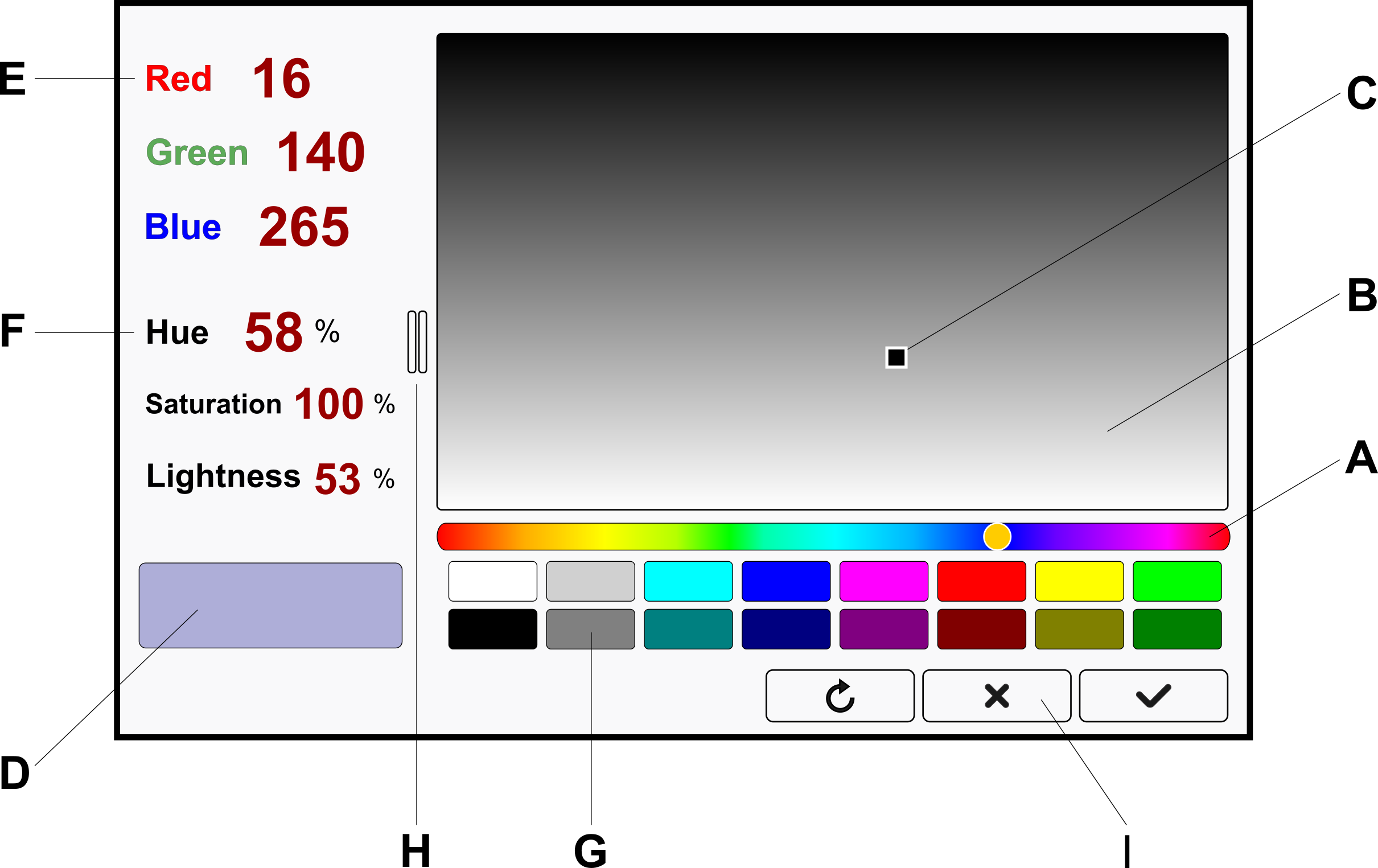
The Color Mixer is a panel featuring controls that allow you to define custom colors using RGB or HSL components, or by selecting them from a color plane.
Predefined color palette
This panel also contains a swatch grid, which serves as a predefined color palette (G) for quick access.
The palette can be customized by dragging the current color from the large color box (D) on the left into the palette cells, or by moving colors from one palette cell to another.
Controls
B
Saturation-Lightness plane for the hue set with the track bar (A)
C
Current color position in the plane
D
Box displaying the current color
E
Adjustable components of the current color in the RGB (red green blue) scheme
F
Adjustable components of the current color in the HSL (hue saturation lightness) scheme
G
Quick-access palette with predefined colors.
The current color from box (D) can be dragged to any of these boxes to store it as a predefined color.
I
Reset, Cancel, and Apply buttons
How to mix a new color?
First, use the hue bar (A) to set the desired hue.
Then, select a color from the Saturation-Lightness plane (B).
If necessary, perform fine adjustments to the color components in fields (E) or (F).
Colors from Thread Catalogs
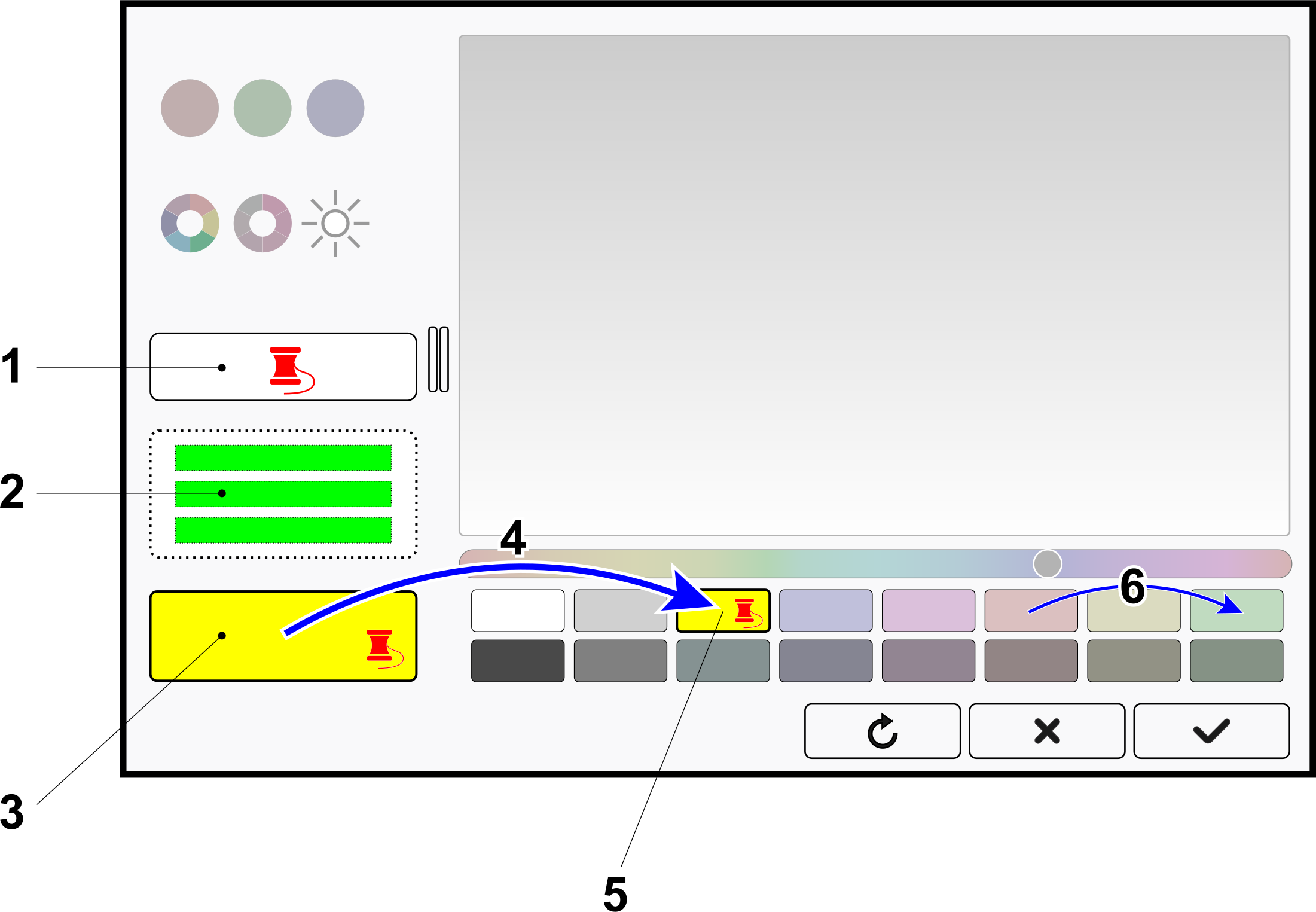
A specialized version of the Color Mixer is used when the color is specific to an embroidered object or stitches.
In addition to defining new colors, this version of the Color Mixer allows you to select colors from embroidery thread catalogs and save them to swatches for quick access.
Thread-Related Controls
1
From Catalog button. Clicking this button opens a window with
thread catalogs from which you can choose a color.
2
Information regarding the color chosen from the catalog will appear in this text field.
3
The color selected from the catalog will appear in the main color field (D).
A spool of thread icon will appear in the corner to indicate that it is a catalog-defined thread color.
4
To save a new color to a swatch for later use, drag it to the appropriate swatch.
Swatches retain their color, allowing you to define a set of favorite thread colors for rapid selection.
5
Swatches containing a thread color from a catalog display a spool of thread icon.
6
You can drag a thread color from one swatch to another. This action clones the color from the source swatch into the target swatch.